If you’re a tech-enabled team who needs to scale without overpaying for enterprise sales software, you’ve found the right sales tool.
New Feature
Automatically create email drafts using Workflows
A new "Create draft for review" option has been added to the Email step in Workflows.
When selected, the email on the Workflow step will be created as a draft and placed in the assigned user's Inbox to review, edit, and send as they see fit.
Learn more about automating Email using Workflows in Close's Help Center.
Improvement
November Improvements
Workflows
You can now use the variable menu to reference trigger data in your Task descriptions.
Email
When composing an email, you can now press "Cmd/Ctrl+Shift+Enter" and it will open the Schedule popup.
The option to add unsubscribe links is no longer found on email templates for unsupported plans, and templates will not add unsubscribe links for unsupported plans. Unsubscribing via an unsubscribe link will now work for all plans.
Better handling of mailto: email address links inside the content of emails.
Custom Fields
Users will now be able to configure custom fields to be always visible - even when empty.
Users will now be able to test AI Enrich directly from the custom field settings.
AI Enrich
Users will now be able to use AI Enrich on a Contact Title.
Users can now run bulk enrich for Contact Titles.
Users will now see a warning banner explaining the AI Enrich cost usage when enrolling workflows that use AI Enrich.
New Feature
New in Workflows: Blackout Dates
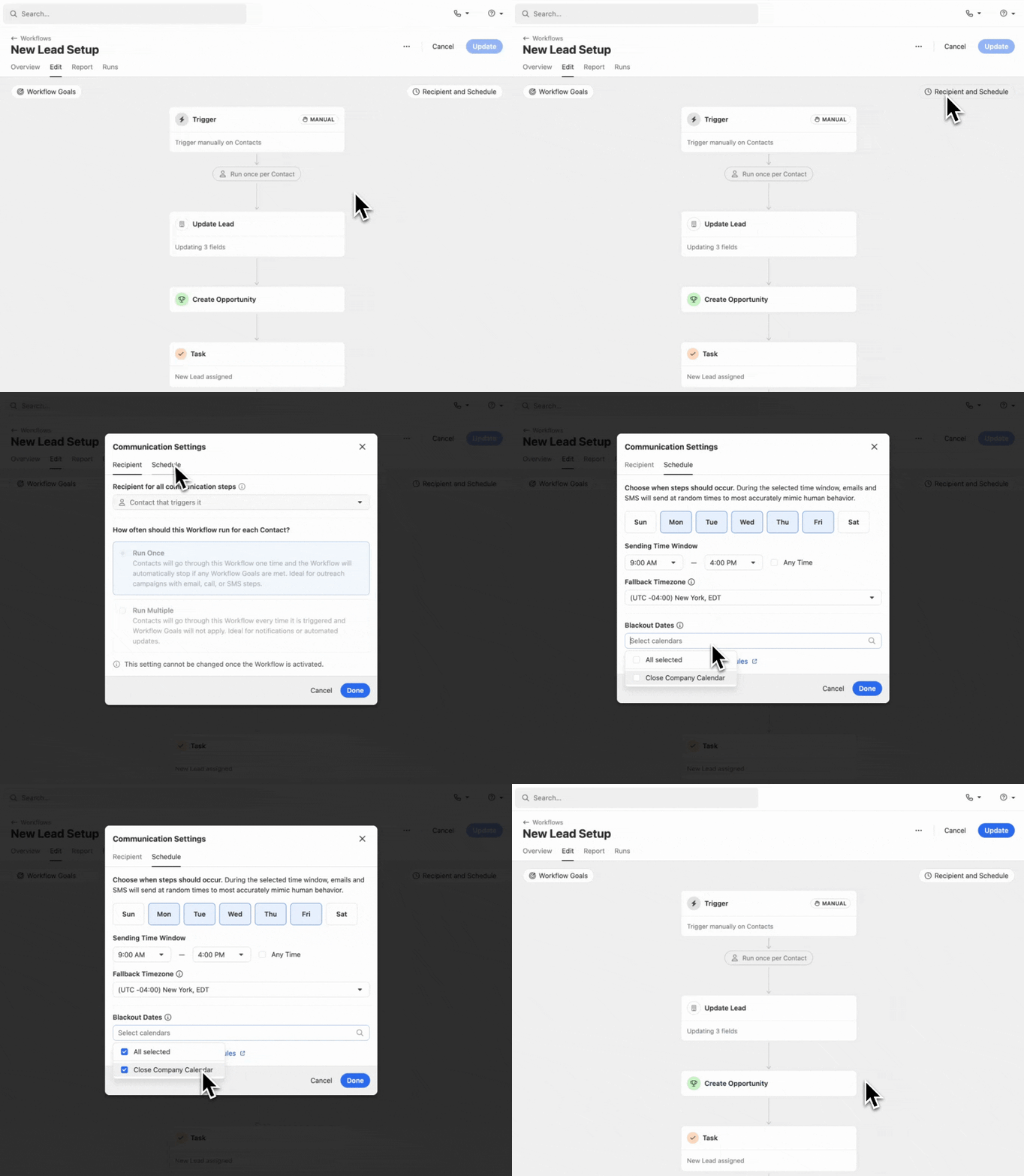
Add Blackout Date calendars to Workflows to prevent automated email and SMS messages from being sent on certain holidays or days when your team is unable to respond.
How it Works:
Create calendars to prevent automated email and SMS messages in Workflows from being sent on certain days (holidays, vacation, etc).
Multiple Blackout Date calendars can be applied to a Workflow via the "Recipient & Schedule" modal.
Update multiple Workflows at once by selecting one or more Workflows and clicking "Set Blackout Dates" from the Workflows list.
Learn more about Workflows and Blackout Dates in the Help Center.
New Feature
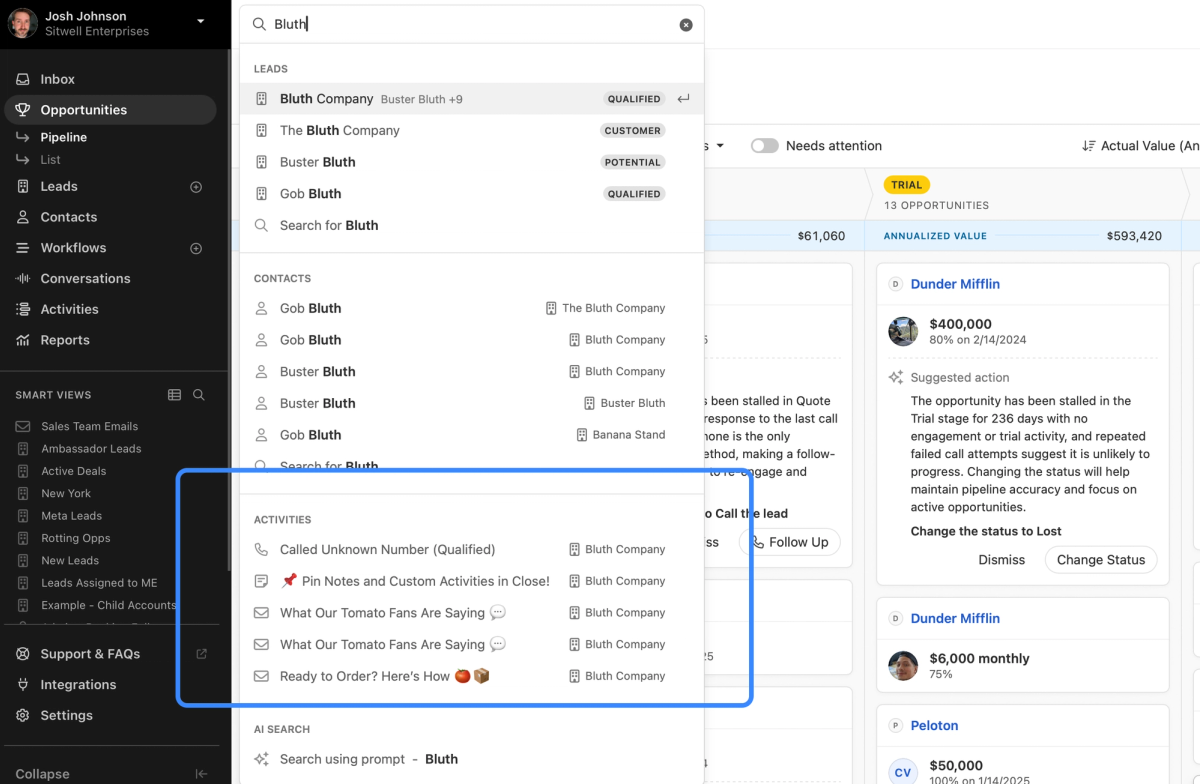
New! See Activities in Search Results
When you search, you will now see the five most recent matching Activities. Clicking a result will take you to the Lead page with that Activity open in full screen view. If you're looking for more powerful Activity searching, check out our new Activity Smart Views.
Improvement
October 2025 Improvements
Workflows
All workflows now display a hint showing whether they run once per contact or every time they're triggered.
Workflows now stay on the edit screen after saving, making it easier to make multiple changes. After creating a new workflow, you are redirected to the workflow detail page.
Workflow search now consistently finds results using partial word matching.
The workflow task icon has been updated to help differentiate it from a completed workflow step.
Fixed a bug where pressing Cmd+Enter on macOS or Ctrl+Enter on Windows while editing workflow steps could cause unexpected updates.
Telephony
Users will see improved error messages when microphone access is denied or unavailable.
The phone popover now allows reconnecting to the calling service to resolve errors.
New Feature
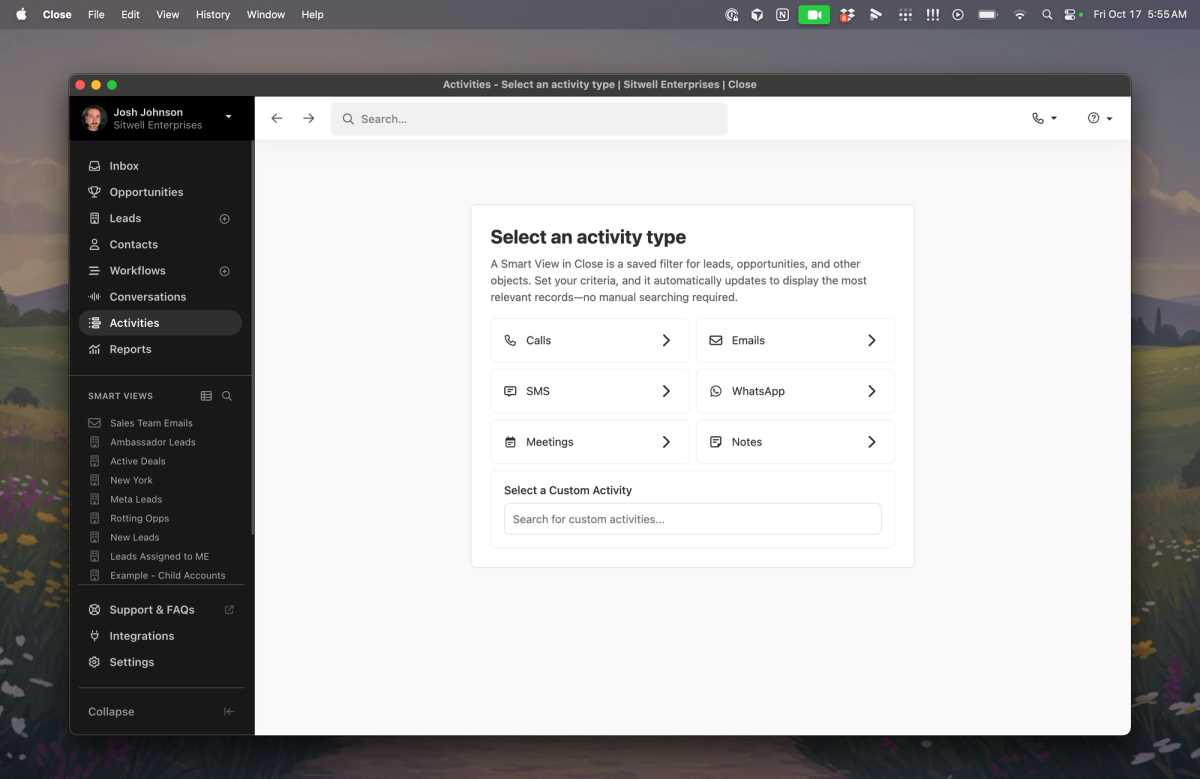
Activity Smart Views
You can now make Smart Views of various types of Activities from your team: Calls, Emails, SMS messages, WhatsApp messages, Meetings, Notes, and Custom Activities. This unlocks a ton of new use cases, from monitoring your team's weekly activity to making a list of calls where the transcript mentioned a particular topic.
Just like with other Smart Views, you can customize your columns, apply filters, and share them with your team.
This feature is available now on all plans.
Improvement
September 2025 Improvements
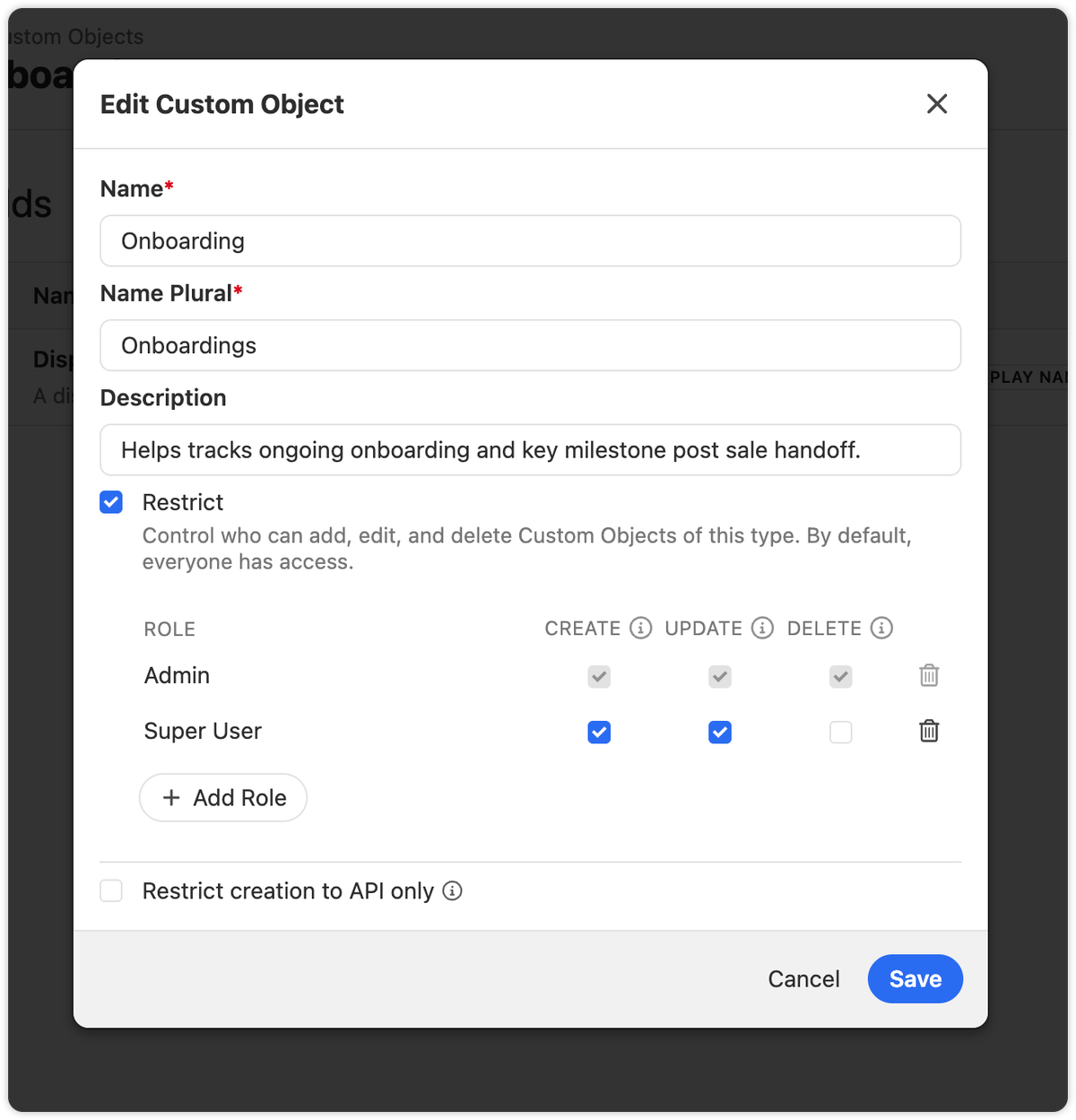
Permissions: Granular Control for Custom Objects and Custom Activities
We've added more precise role permissions for Custom Objects and Custom Activities. Admins can set separate rights to add, edit, and delete, giving teams tighter control without slowing down daily work.
Add, Edit, and Delete are now distinct permissions you can assign per role for both Custom Objects and Custom Activities. Existing restrictions carry over, so users keep their current access; you can add finer granularity as needed.
How to use it
Go to the Settings of your Custom Objects or Custom Activities.
Check the box to restrict the object.
Then assign Add, Edit, and Delete separately to the roles that need them.
For Activities, choose whether published types can be editable by specific roles, or only in draft.
Workflows
You can now trigger a Workflow when an Opportunity stalls. Automate follow-ups or updates when Close detects that an opportunity needs attention. See Pipeline Guidance for more details on when an Opportunity Needs attention.
Workflow step icons now have clearer tooltips and improved accessibility, making automations easier to scan and understand at a glance.
AI Enrich
On Lead and Contact Smart Views, you can quickly start a Bulk AI Enrich run directly from a column header for enrichable fields. If a field has enrich turned on, the bulk enrich modal opens pre-filled.
Other Improvements
You can now archive, unarchive, and delete snippets in bulk, the same way you can with SMS and Email Templates.
Improvement
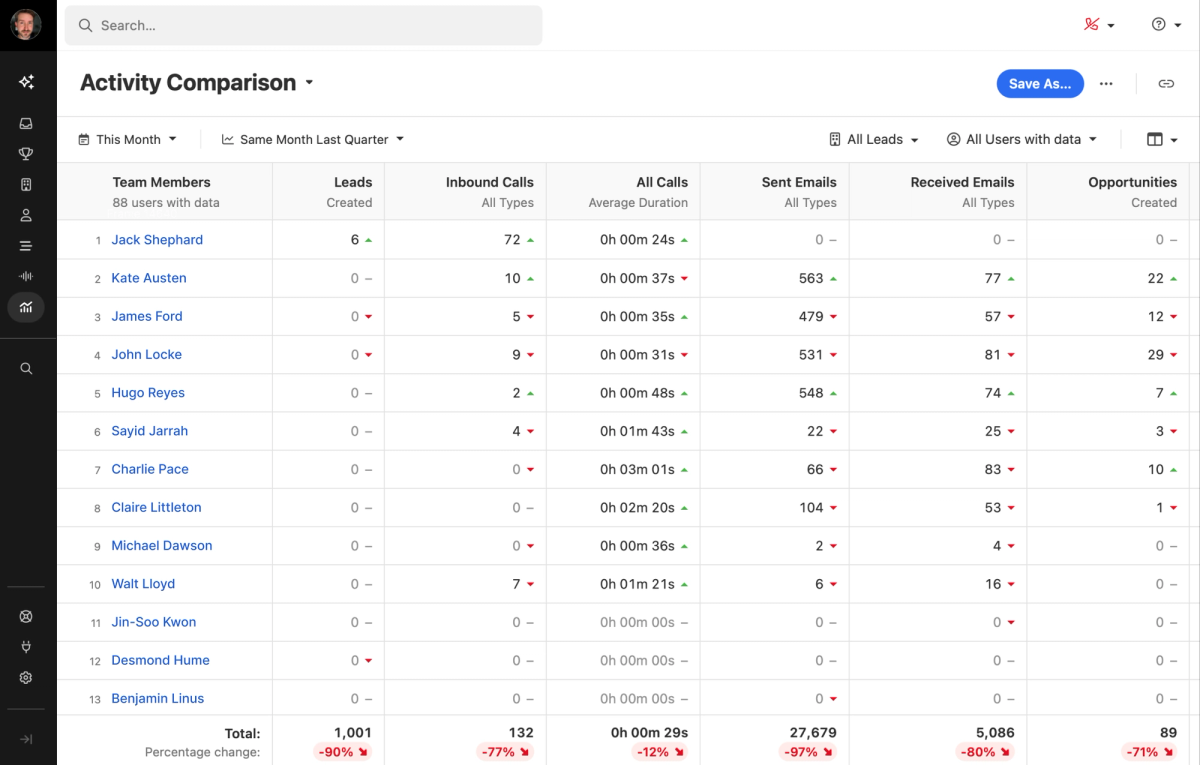
Updated Activity Comparison Report
The Activity Comparison Report helps you quickly see your team's actions and measure them against previous periods. We've enhanced the table experience with intuitive drag-and-drop column reordering, a streamlined overflow menu, and a refreshed design that makes your data easier to read and understand.
Improvement
Inbox Prioritization Improvements
We've made a batch of updates to help you move faster, see more context at a glance, and keep your work organized.
Lead Status and Opportunity Info in Inbox
Inbox rows now show lead status, opportunity value, and overdue dates in red. You can also update a lead's status directly from the inbox.
Lead Context Hover
Hover over a lead in the inbox to see key info like lead status and opportunity value—no need to click in.
Potential Contacts in Your Inbox
Manage all your communications in the Close Inbox, including messages from potential contacts not yet in Close.
Inbox Filters
Filter your inbox by lead status, opportunity pipeline or status, and Smart Views.
Next Lead from Inbox
You can now use the Next Lead button to move through your inbox without jumping back and forth—just like in Smart Views.
On lead pages, you'll also see a count of open inbox items. You can mark all items as done or snooze them at once. Tasks and opportunities with active notifications are now easier to spot.
Lead Status Colors
Assign colors to lead statuses to make it easier to scan lists of leads across the app.
High Priority Tasks
Flag tasks as High Priority so they stand out in the inbox and on lead pages. This option is available when manually creating tasks and via workflows. The new priority field is searchable on both leads and contacts.
Improvement
August 2025 Improvements
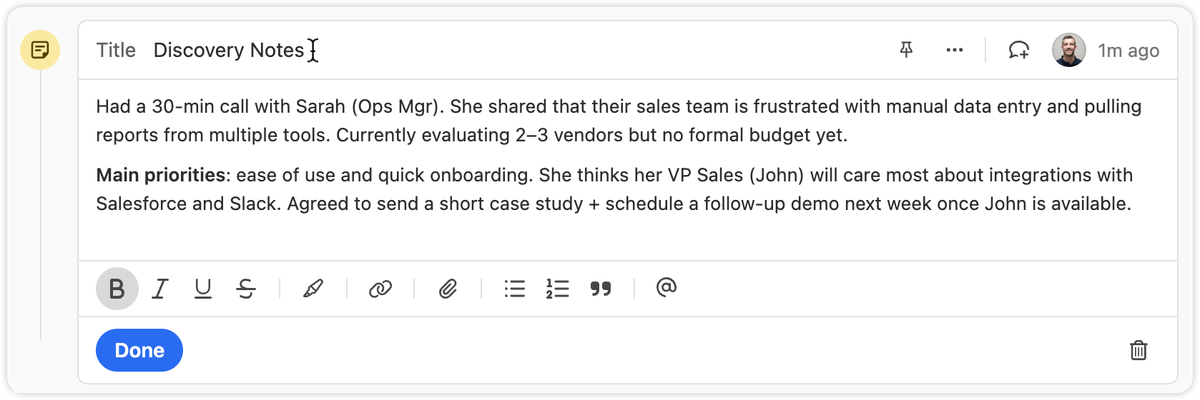
Notes
You can now set custom titles on Notes.
Titles are also searchable, making it easier to find key information in Smart Views.
Export Lead Fields
We added the option to only export columns that are included in that specific Smart View. This will help you get only the data you need.
Other Improvements
Extra confirmation is now required when deleting custom fields, helping prevent mistakes.
Voicemail notifications now show a preview of the transcript when collapsed.
We added the ability to cancel inline edits on the Lead page by pressing "esc".
Bug Fixes
The "all users" option in User Select is now searchable.
The member count in the membership view updates correctly when switching between organizations.
New Feature
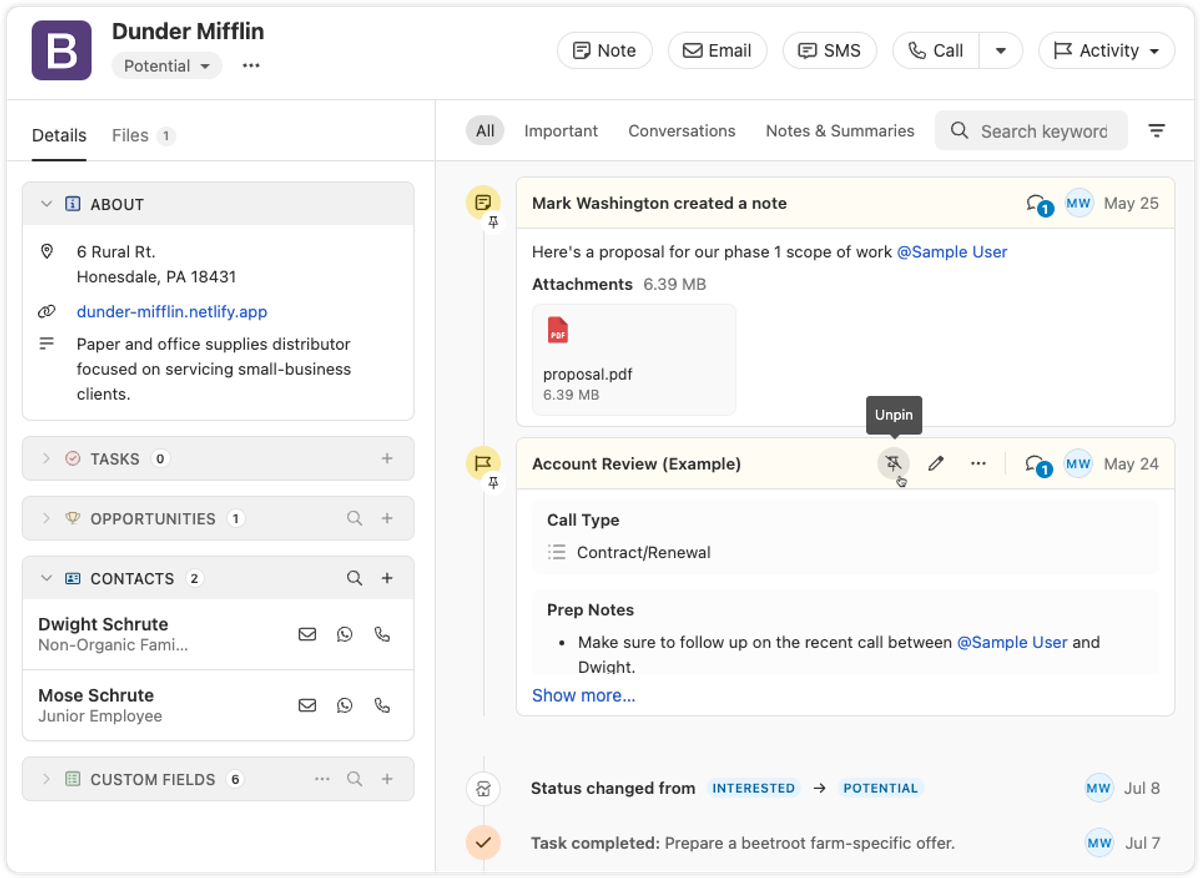
Pinned Notes & Custom Activities
You can now pin Notes or Custom Activities on any Lead in Close. Pinned items appear at the top of the activity feed, making it easy for your team to highlight key info and updates.
Share a summary for your team: Pin a note that gives an overview of the lead's status or next steps. Anyone who views the lead will see the summary first, helping reduce confusion or missed context.
Resurface important threads: If a note or custom activity contains details that might be needed later — like feedback, deal blockers, or helpful context — pin it so it's always easy to find.
This feature is available on all plans.
New Feature
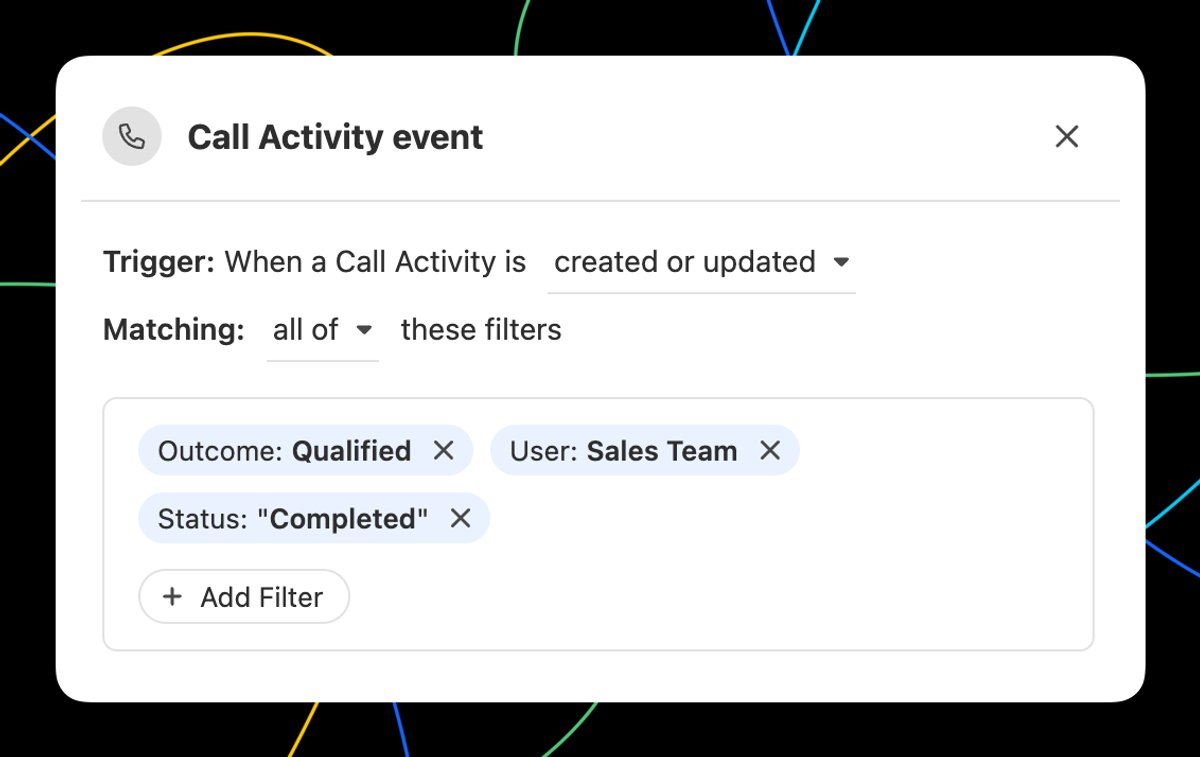
Call Event Workflow Trigger
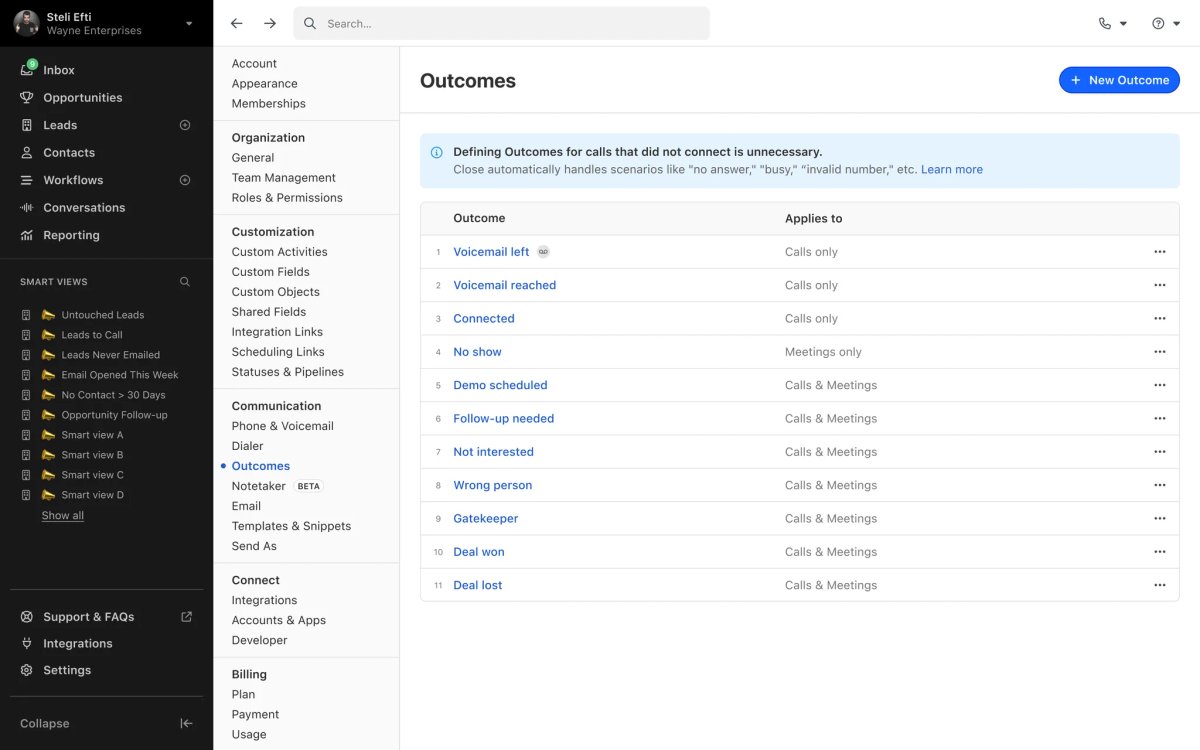
In Workflows, you can now trigger a Workflow when any Call event occurs. All of the filter options you'd expect are available, including Outcomes! With the Call event trigger, you can...
Automate email or SMS to the contact that was called.
Automatically assign the Lead to the user that made the call.
Create tasks to notify yourself or others when there is a Call that meets certain criteria.
Use a Call matching certain criteria to update Lead fields using the call context with AI Enrich.
Integration
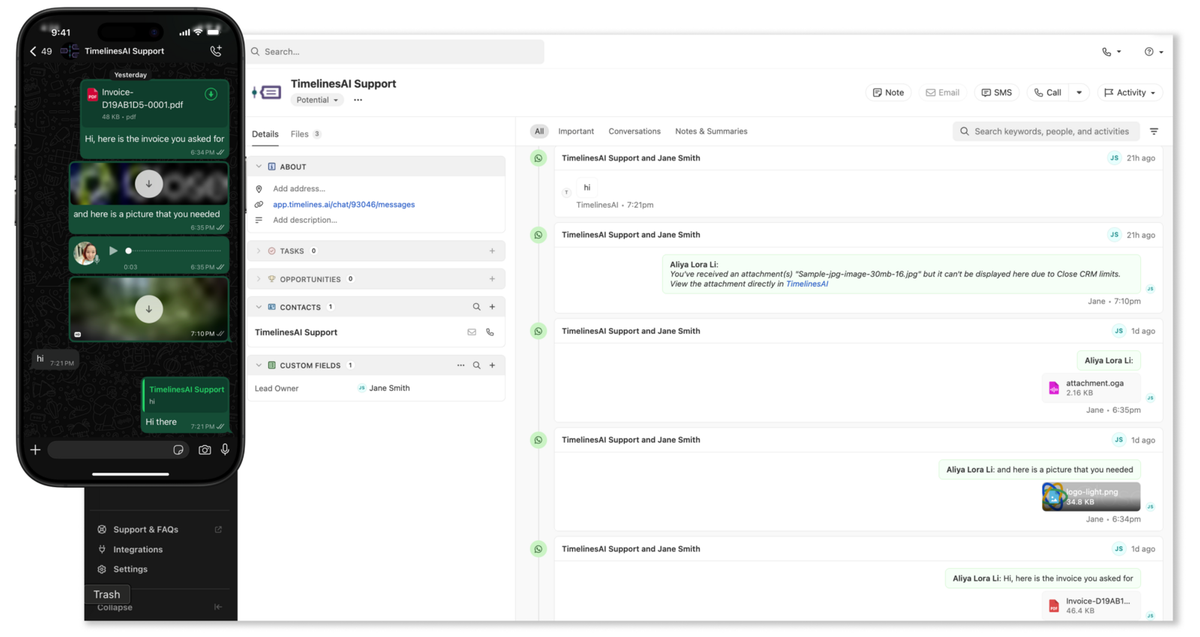
WhatsApp Integration via TimelinesAI
TimelinesAI has launched a Close integration that automatically syncs WhatsApp messages to your leads—using Close's new WhatsApp activity type.
With this integration, you can:
Automatically create new leads when a WhatsApp chat comes in and no matching contact exists
Log WhatsApp messages as native activities in the Close timeline—including text, locations, and attachments up to 25MB
Match messages to leads using phone numbers in international format
Assign lead ownership based on who owns the WhatsApp chat, the WhatsApp account, or fall back to the integration owner
Note: The WhatsApp activity type is also available via the Close API and Zapier—ideal for tools like Superchat or custom-built integrations.
New Feature
Update Lead Step in Workflows
Automatically update Leads using the new "Update Lead" step in Workflows:
Automatically update any standard Lead or Lead Custom Field.
Map fields from the trigger data to Lead fields.
Use AI Enrich to automate lead enrichment or any other research task!
Improvement
July 2025 Improvements
Notetaker
You can now pause or resume Notetaker recording directly within the app. Meeting reminder bars show more detailed statuses and recording controls. See the Notetaker help doc for details.
Workflows
Workflow trigger editing is now easier. Instead of deleting an old trigger to add a new one, you can "replace" it. If you cancel while adding a new trigger, your old one stays in place — ensuring your workflow is never left without a trigger.
Filter Improvements
A validation check has been added to filter editor fields for Leads, Contacts, and Workflow triggers, making it easier to build accurate filters and avoid mistakes.
Import Page
The import data page has been refreshed with updated designs and a new panel for importing Potential Leads & Contacts from your connected email. Functionality is largely unchanged, but the import options are now easier to find.
Calling
You can now switch audio devices during an active call using the Phone Settings popover — no need to hang up or refresh.
Coach Invite and Call Transfer menus in the call bar are now grouped by user availability. Offline users no longer appear in the transfer list, and both menus now look and behave consistently.
When the Predictive Dialer can't be used on a specific Smart View, you'll now see suggested solutions and a link to help documentation instead of a generic error message.
Other Improvements
SMS messages now use smart encoding, reducing delivery failures and potentially lowering outbound message costs by keeping messages within carrier limits.
The field type dropdown when creating or editing Custom Fields now displays section headings.
Destructive actions such as Delete buttons now have a red background to make their impact more obvious.
Reporting page headers now behave more consistently.
Bug Fixes
The "Unsaved Changes" modal no longer appears for a workflow that has just been deleted.
Fixed an issue where the display name of a Contact would not appear during calls.
The "Create a Workflow" button now works correctly when no workflows exist.
Checkbox alignment in some tables has been fixed.
New Feature
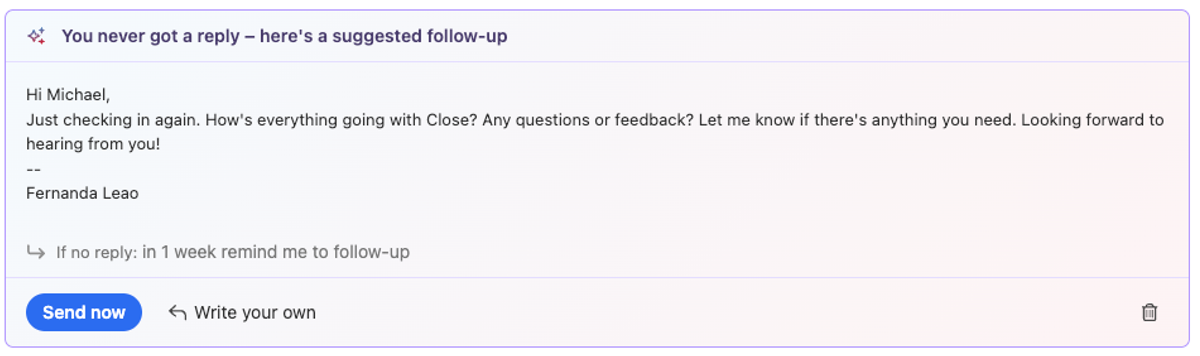
AI Suggestions on Email Reminders
Close will now suggest a follow-up message when an email reminder comes due, helping you take action faster.
Suggestions appear right in your inbox when the reminder is triggered
Send immediately or make quick edits inline
Open in the full editor if you need access to more tools
New Feature
New and Improved Calendly Integration
We have made several enhancements to Close's integration with Calendly:
Automatically create Contacts when new meetings are booked (including duplicate detection)
"Round Robin" Event Type support
Use the "Sync" button to force update recent changes to your Calendly account into Close
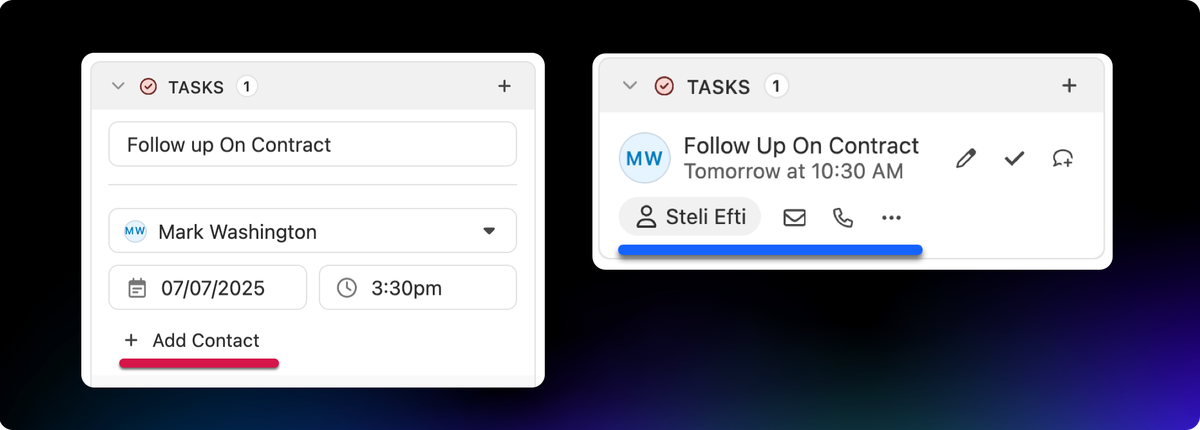
Add Contacts to Tasks: You can now add a Contact directly to a task, making it easier to track who you need to follow up with. You can quickly call or email the specific Contact by clicking the action icon on the task from the Lead page or Inbox.
WhatsApp Integration Links
WhatsApp Integration Links are now available for all organizations. When enabled, a WhatsApp link appears on SMS notifications in the inbox and on phone numbers in the Contact card on a lead. Clicking the link opens WhatsApp Web to a chat with that number, if one exists.
Field Level Control: Admins can now turn off AI Enrich for any custom field, preventing unintended enrichment on fields like internal IDs.
Manual Run Permission: A separate permission now controls who can manually run AI Enrich on records, independent of the bulk enrichment permission. All AI Enrich permissions are grouped in a new section on the roles page.
Notetaker
Improved Recording Timing: Notetaker now only starts recording when a second participant joins your meeting, eliminating recordings full of silence.
All Participants Visible in Recordings: Recordings now display all meeting participants simultaneously rather than just the current speaker, which is especially helpful for training sessions. See the Notetaker help docs for more.
Workflows
Workflows by Owner: The Workflows list now shows the owner of each workflow, and you can filter by owner. The filter persists when you return to the Workflows page.
Reassign Workflow Ownership: When a user is removed, admins are prompted to reassign any workflows owned by that user.
Additional Improvements
New Contact Card in Emails: Clicking an email address in the activity feed or inbox now shows a contact card from which you can call, text, or email the contact.
Gmail Signature Sync: Your Gmail signature now syncs automatically when you connect your Google account.
Email Open Tracking for Essentials Plan: Essentials plan users can now track email opens without upgrading.
Mobile Table Improvements: The keyboard navigation icon is now hidden on Leads and Contacts tables on mobile so more information is visible.
Bug Fixes
Fixed an issue that prevented users from exiting fullscreen mode on the report page.
New Feature
Pipeline Guidance
Pipeline Guidance is your AI-powered deal assistant. It automatically highlights what needs your focus, suggests actions to move opportunities forward, and helps you take immediate action through one-click options. These options include drafting emails and SMS messages, moving opportunities to the correct status column, and launching the dialer to call leads right away.
Note: Available on Growth, Scale, Professional, Business, and Enterprise plans. No additional AI charge at this time.
Pipeline Guidance helps you work through your Opportunity Pipeline in two ways:
Flagging opportunities that need attention
Providing AI-powered suggested actions to move flagged opportunities forward toward closing, or clean up your pipeline if a deal is clearly lost
Focusing On Opportunities That Need Attention
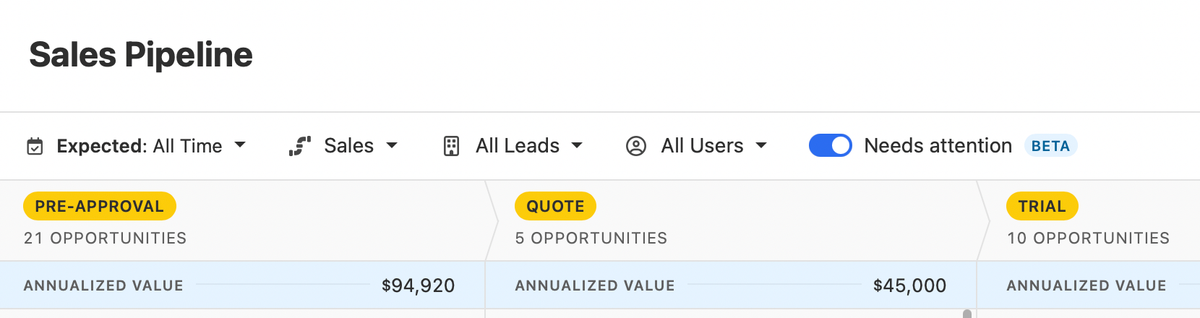
A new Needs attention toggle at the top of the Opportunity Pipeline filters the view to show only deals that have been flagged.
An opportunity is flagged as "Needs attention" when:
It is past its estimated close date
It has been in its current pipeline status longer than is typical for that stage
Recent communication from the lead has gone unanswered by your team
Suggested Actions
Opportunity cards that need attention use AI to suggest the appropriate next action based on recent activity — meetings, calls, and emails.
If you disagree with or no longer want to see a suggested action, click Dismiss to hide it for that opportunity.
Example situations and suggested actions:
If a rep has been emailing with no response, the suggestion may be to call instead. Clicking "Follow Up" would dial the lead.
If a lead promised to follow up and hasn't, the suggestion may be to email them. Clicking "Follow Up" would open a pre-drafted email ready to send or edit.
If recent communication indicates a deal is clearly lost, clicking "Change Status" would move the opportunity to the Lost status.
Suggested actions also appear in other places where opportunities surface, such as Inbox Reminders and the Lead page.
Free trial Free migration Free support No credit card needed