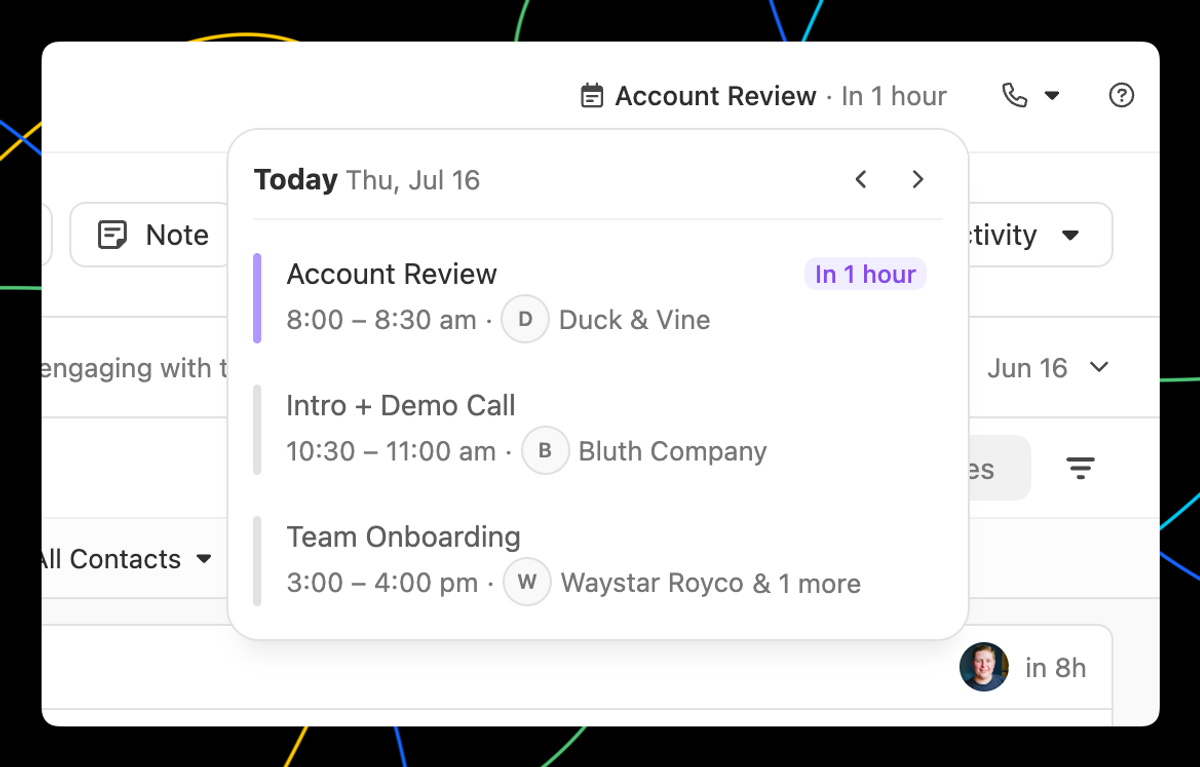
Click the calendar icon in the app header to see your schedule for the day. If you have a meeting coming up today, it'll show automatically in the header as a heads-up.
Hover over any meeting and click the Chloe icon to chat with Chloe about it. Ask her to prep an agenda, draft a brief, or anything else you need before you hop on the call.
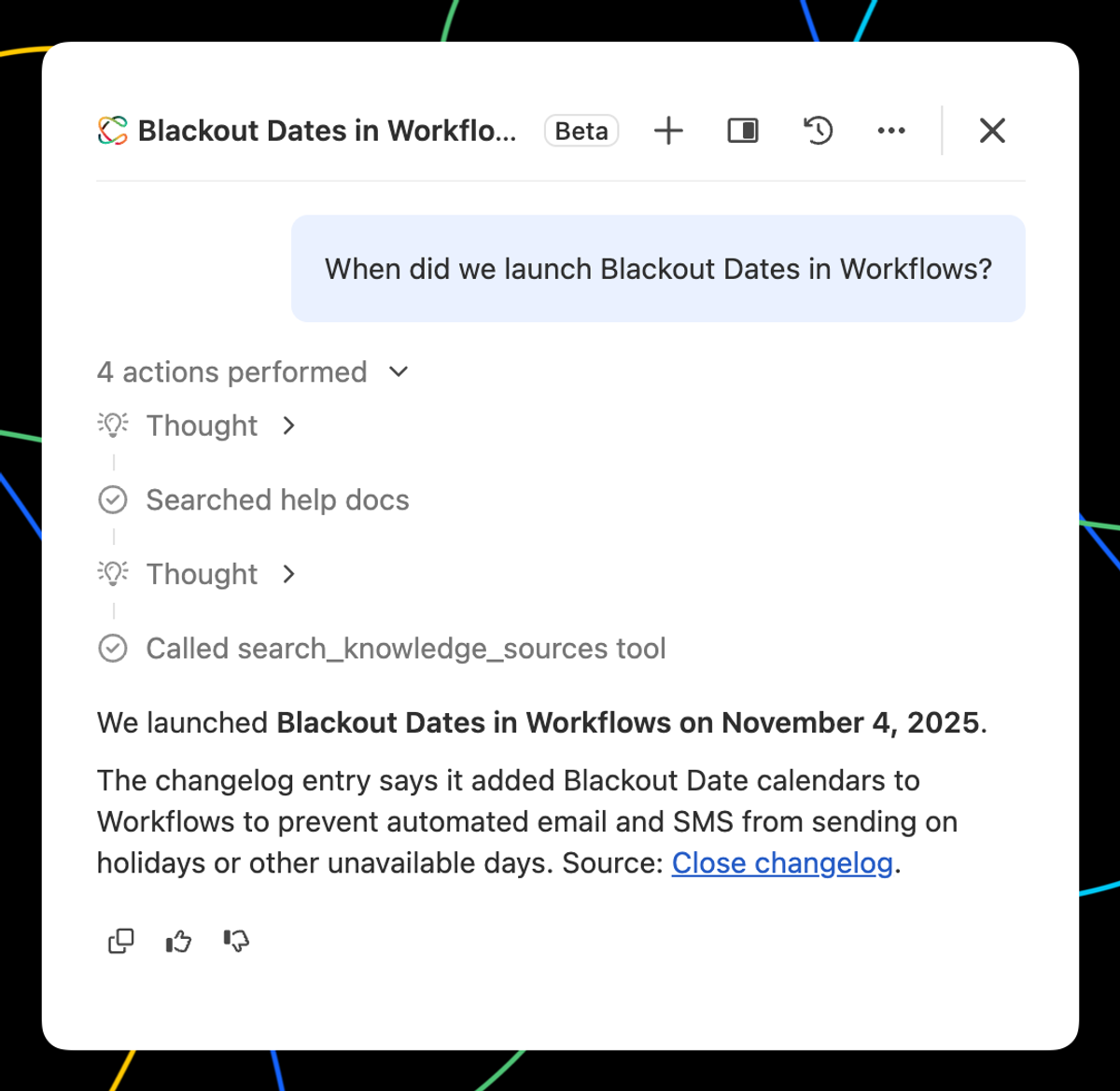
Add Knowledge Sources to help Chloe better understand your team's sales strategy, product and pricing information, and expectations for reporting.
When you ask Chloe questions, she can reference those Knowledge Sources to give you better answers.
Pro Tip: Adding Knowledge Sources can help Chloe craft better email drafts!
New Feature
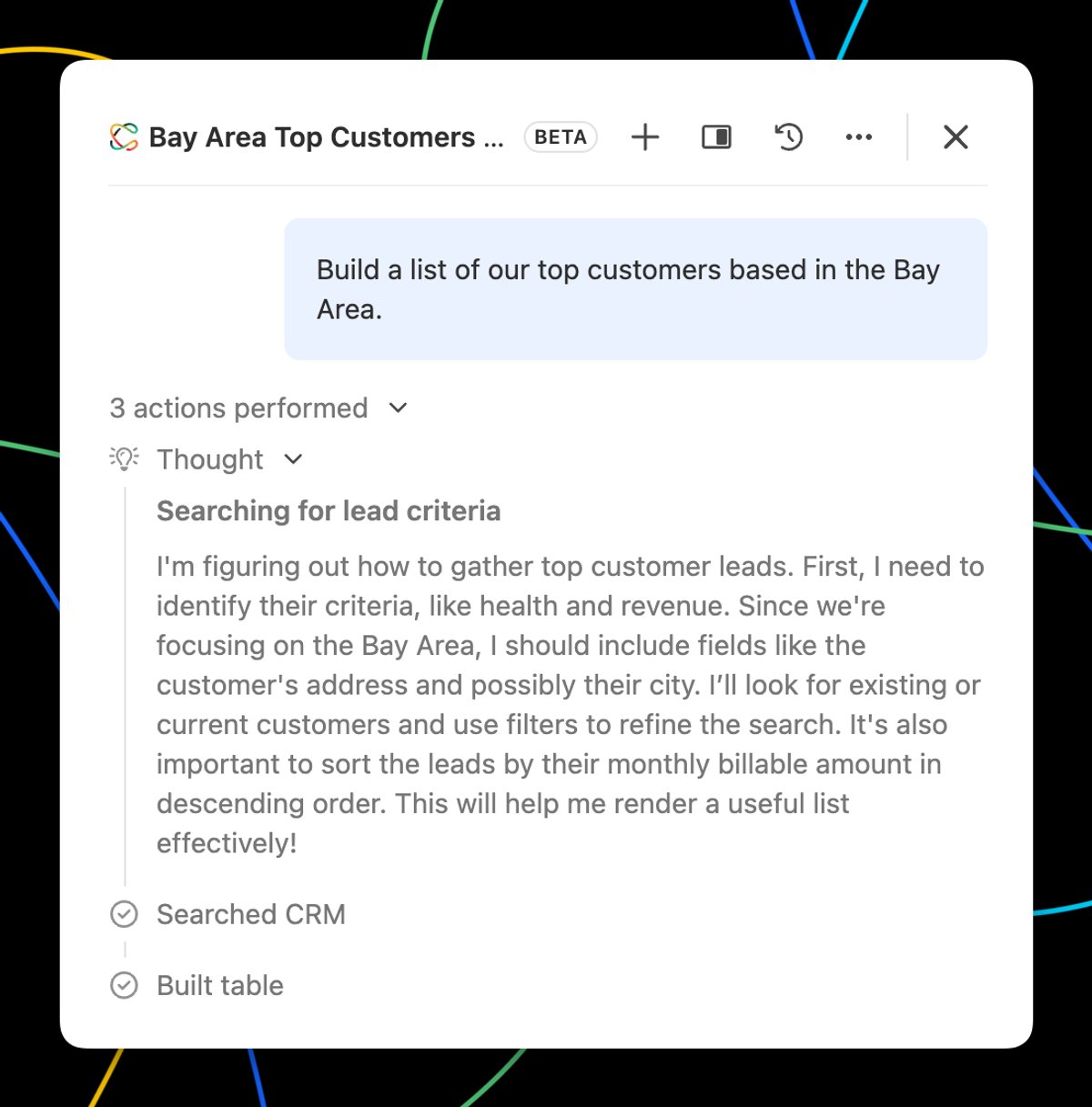
See how Chloe thinks in Chat
When Chloe needs to think through a request, you'll now see her reasoning. This context can be helpful for understanding how she arrived at a response.
Improvement
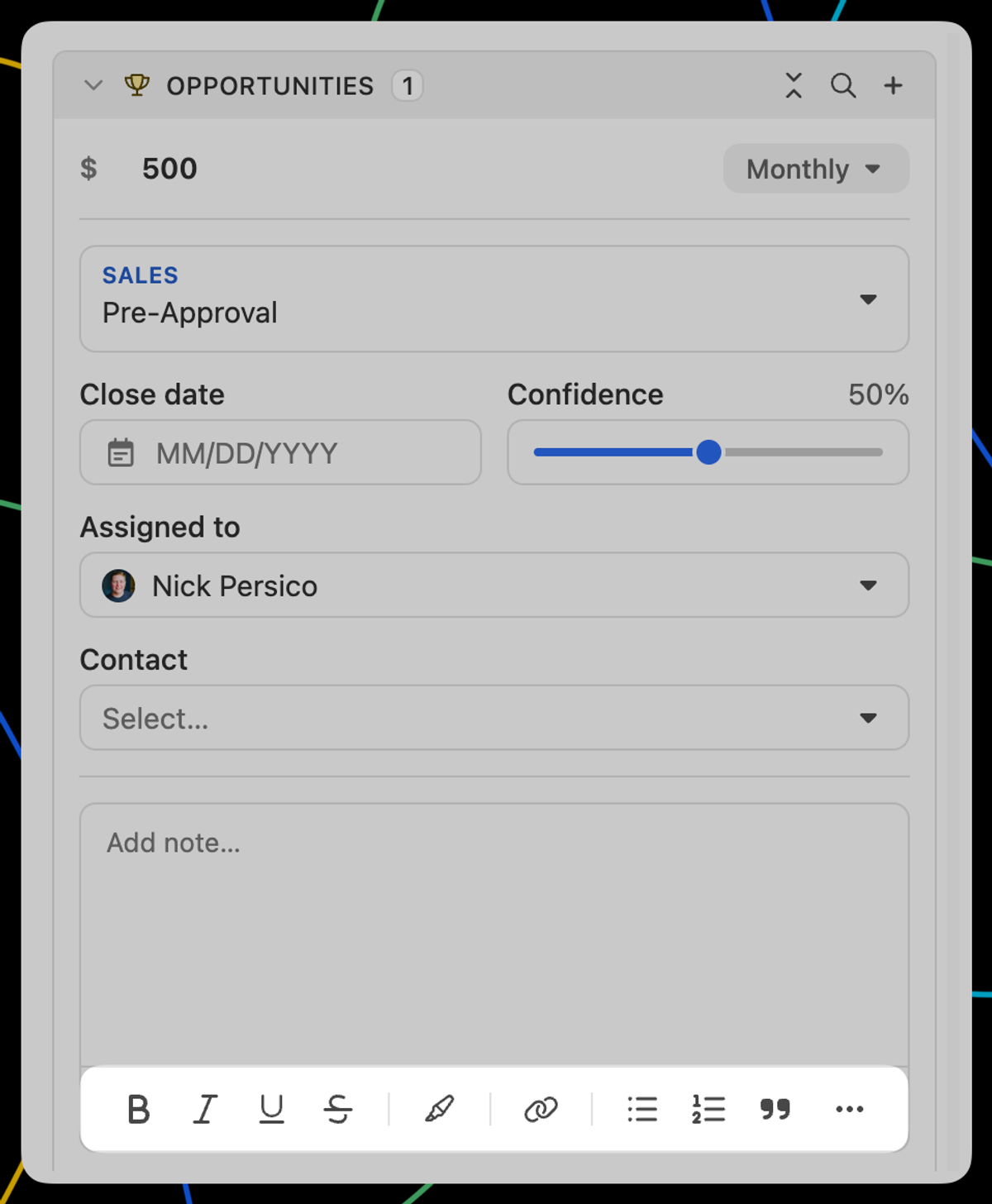
Rich text formatting in Opportunity notes
You can now format your Opportunity notes with bold, italics, underline, strikethrough, links, and more right inside the Opportunity on a Lead page.
It works the same way as rich text in your Lead notes, call logs, and meetings. Just click into the note field on any opportunity and use the formatting toolbar that appears.
Improvement
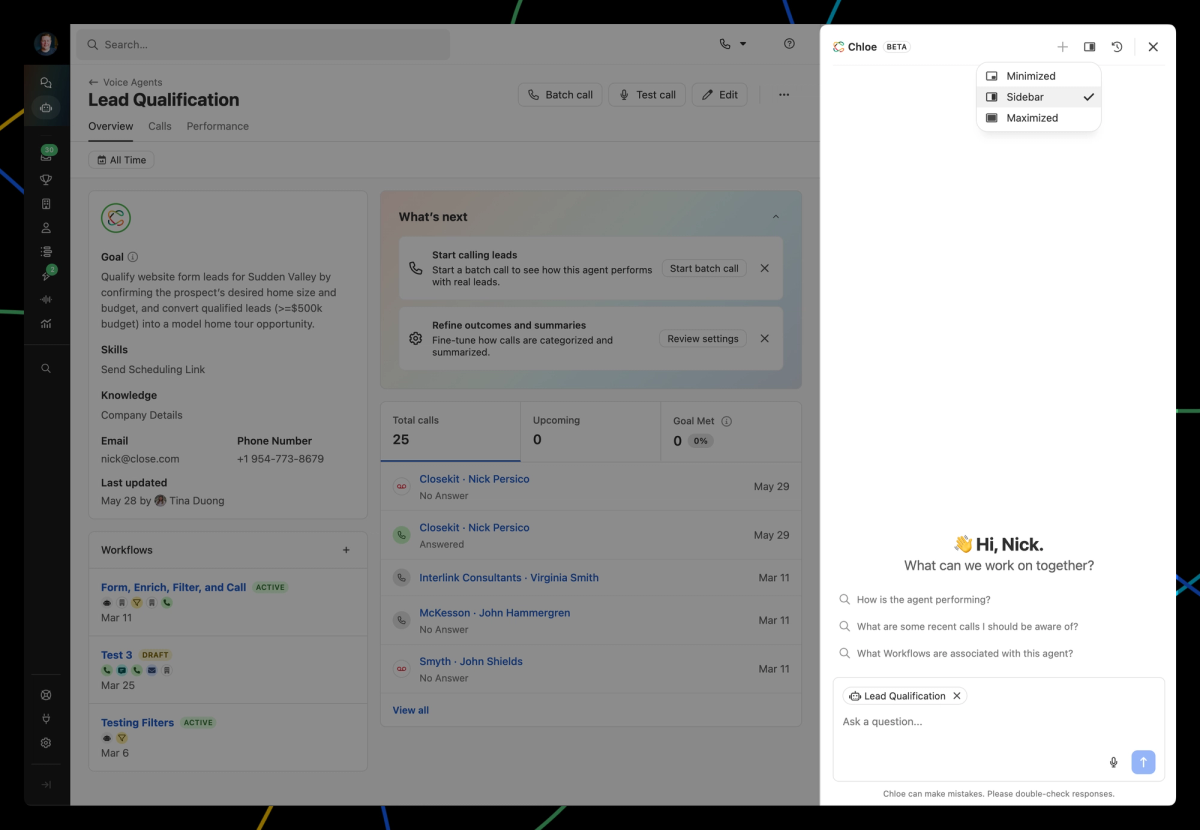
Chloe Chat Sidebar view
We've rolled out a ton of new upgrades to Chloe Chat:
A new "Sidebar" view option.
When viewing information about Voice Agents, Chloe has context on what you are looking at for faster results.
Tons of new capabilities, including creating comments and updating opportunities.
Assign Chloe Call Tasks (ex: "Call this lead")
Update any Chloe Voice Agent instructions
New Feature
Two security improvements for admins
We've shipped two updates to give admins more visibility and control over your Close org.
Restrict invites to approved email domains
We expanded the capabilities of Seamless Invites and Team Management. You can now set a list of allowed email domains in Settings → Team Management.
Any invite or signup attempt from an email outside that list will be blocked automatically.
This only applies to new members joining after the setting is enabled. Existing org members are not affected.
Get notified when a data export is initiated
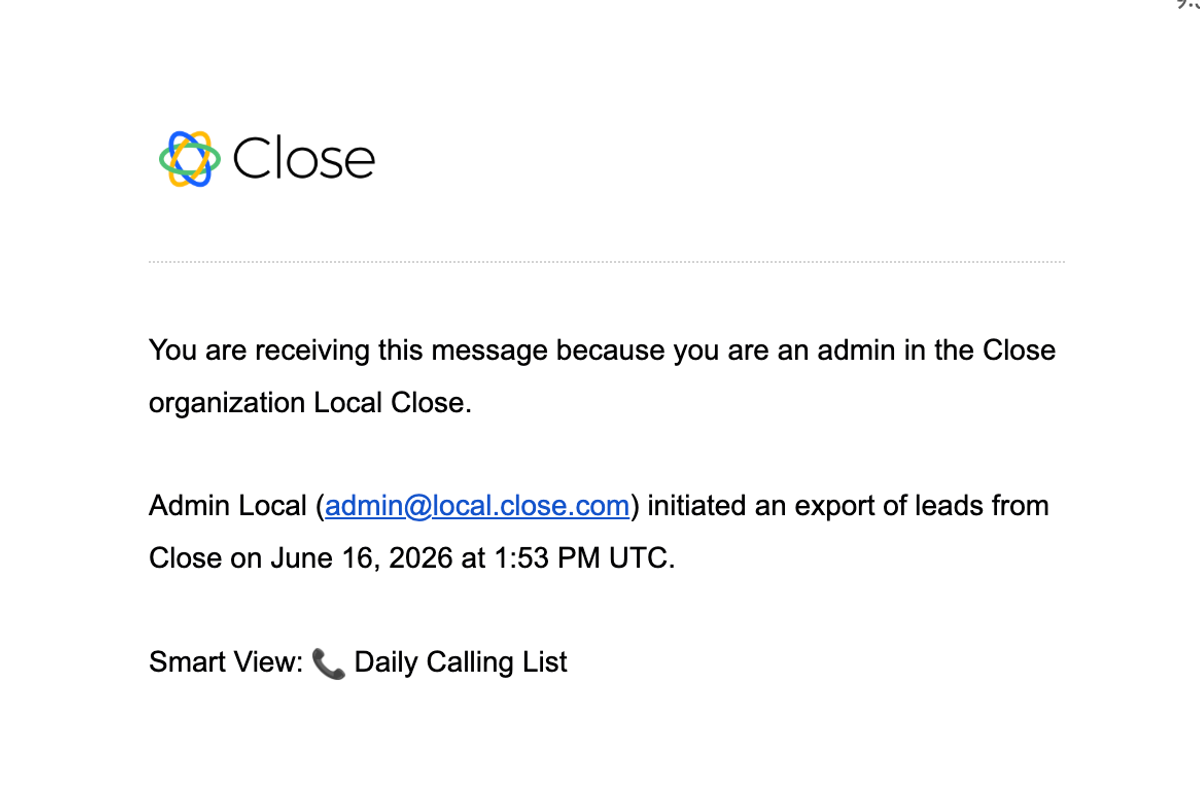
Admins now receive an email whenever a data export is kicked off in Close. The subject line shows who requested it (e.g. Jane Smith initiated a Close export), and the body includes their email address.
The email tells admins:
What happened (an export was kicked off)
Why they're receiving it (because they're an admin)
Who requested the export, and when
This gives admins immediate, actionable awareness in case an export looks suspicious. Note: there's no way to stop an in-progress export from the email itself, so please contact Support if you need assistance.
Improvement
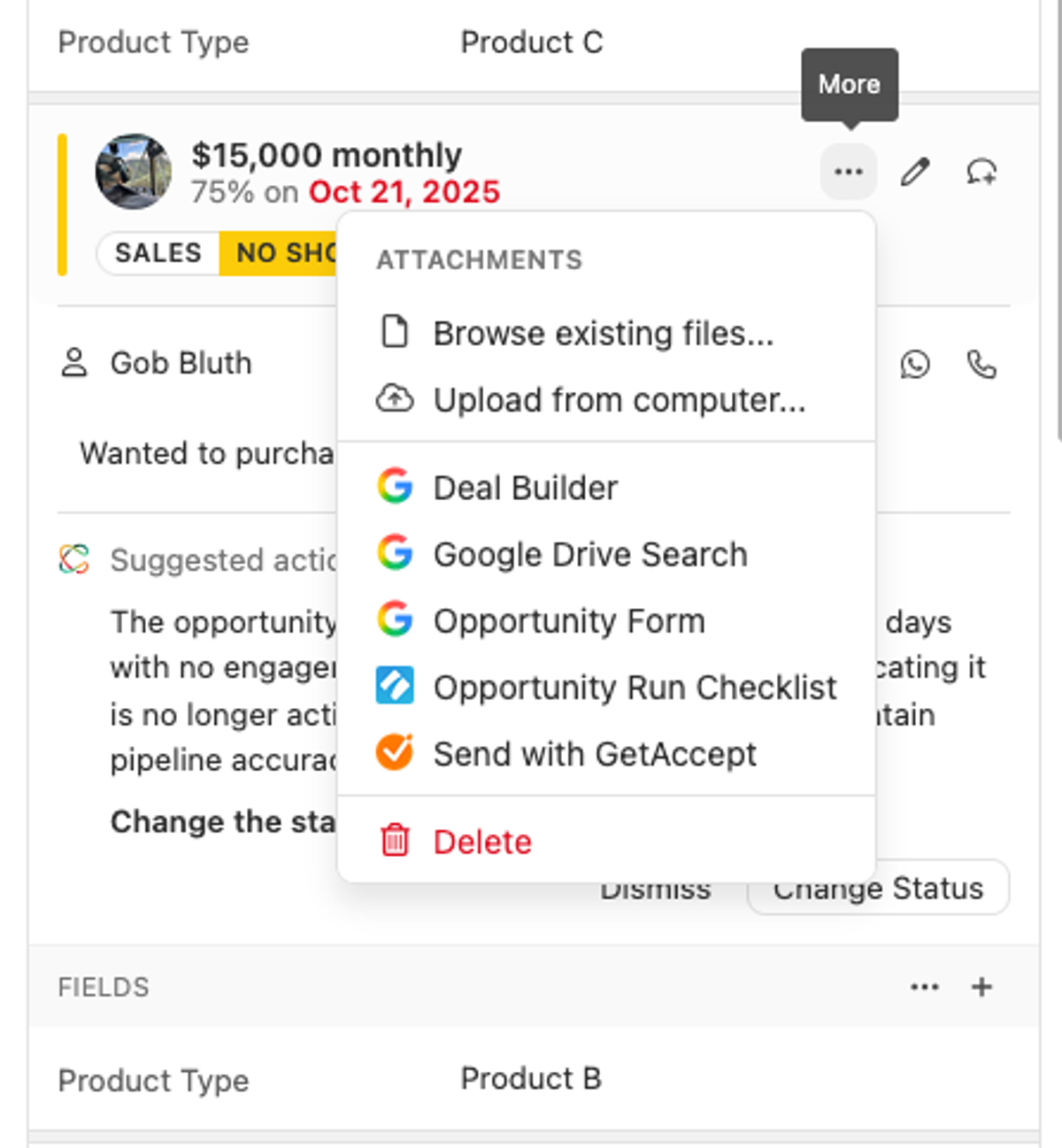
Improved File attachments for Opportunities
On the lead page you can now add file attachments to an Opportunity even when you're in view mode, no need to switch into edit just to upload a file. This is available under the Opportunity More (...) menu.
And when you are in edit mode you can now drag and drop files into the Attachments section for easier upload.
New Feature
Introducing Chloe, Your AI Sales Teammate in Close
Chloe is an AI sales agent built directly into Close. She can call leads, qualify prospects, answer questions, book meetings, follow up automatically, enrich customer records, update CRM data, and help teams work inside Close through Chloe Chat.
Voice Agents
Chloe calls your leads, runs real conversations, and logs outcomes, summaries, and transcripts back to the lead record automatically. See Voice Agent Setup to get started. Available to U.S. customers only.
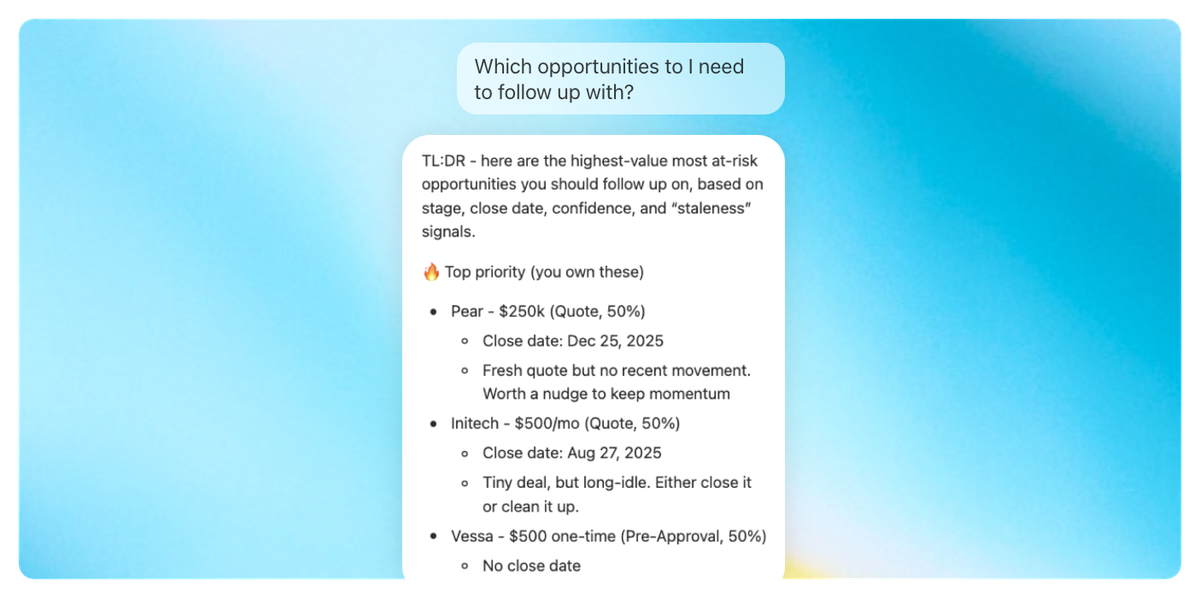
Chat (beta)
Your AI assistant inside Close. Ask about your leads, pull pipeline summaries, and take actions. See Chloe Chat. Available worldwide.
New Feature
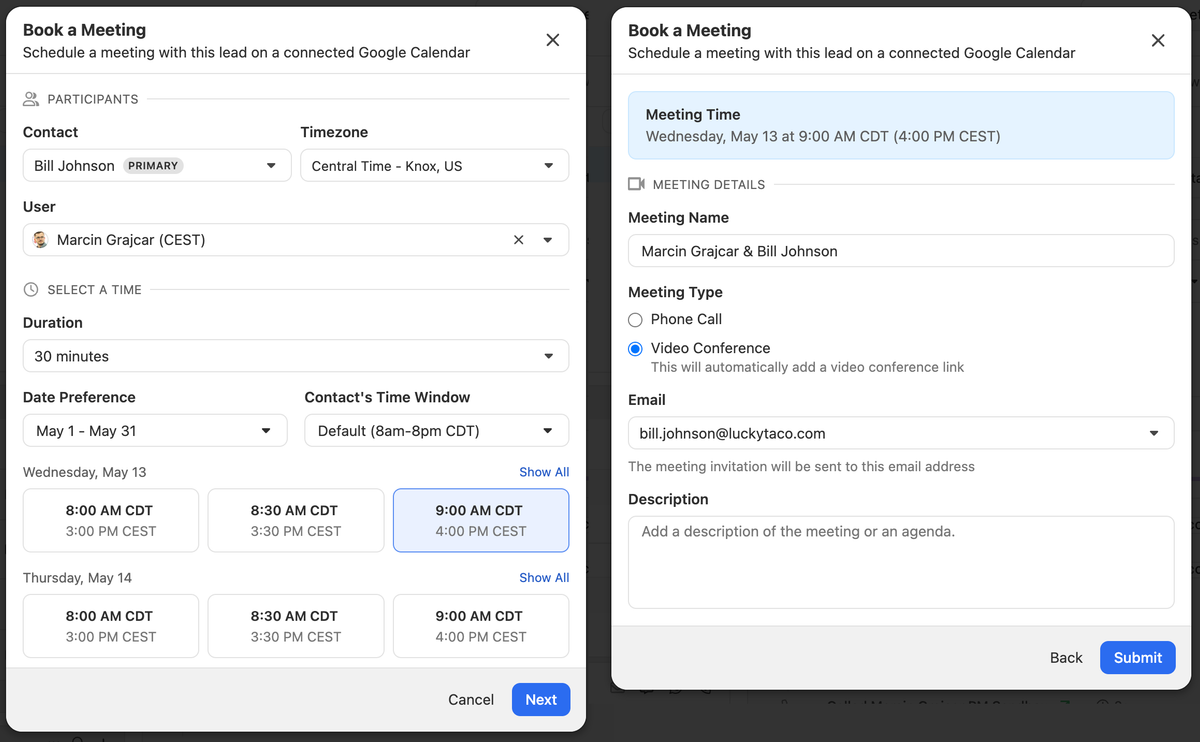
Native Scheduling
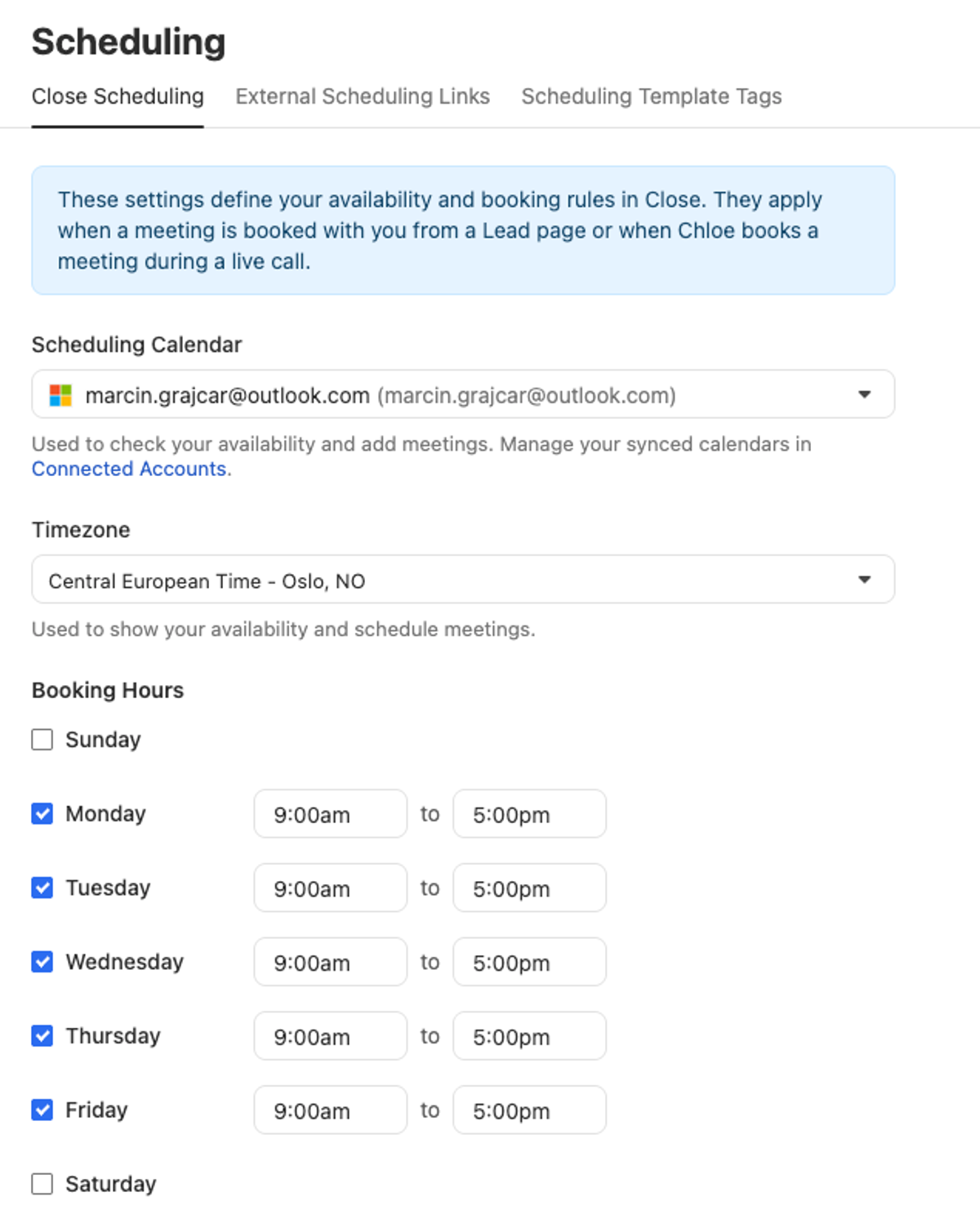
Scheduling meetings has always been tedious, but we built native scheduling capabilities in Close. Now, you can book a meeting with a customer or prospect directly from the Lead Page!
We currently support Google Calendar booking (Microsoft coming soon). It's a matter of configuring Close Scheduling in Settings.
Close's official ChatGPT app is now available. Whether you need to generate a custom report, research and create a new lead list, get a summary of recent interactions with a customer, or create new Workflows — all you have to do is ask ChatGPT to take care of it for you.
New Feature
Call Tasks
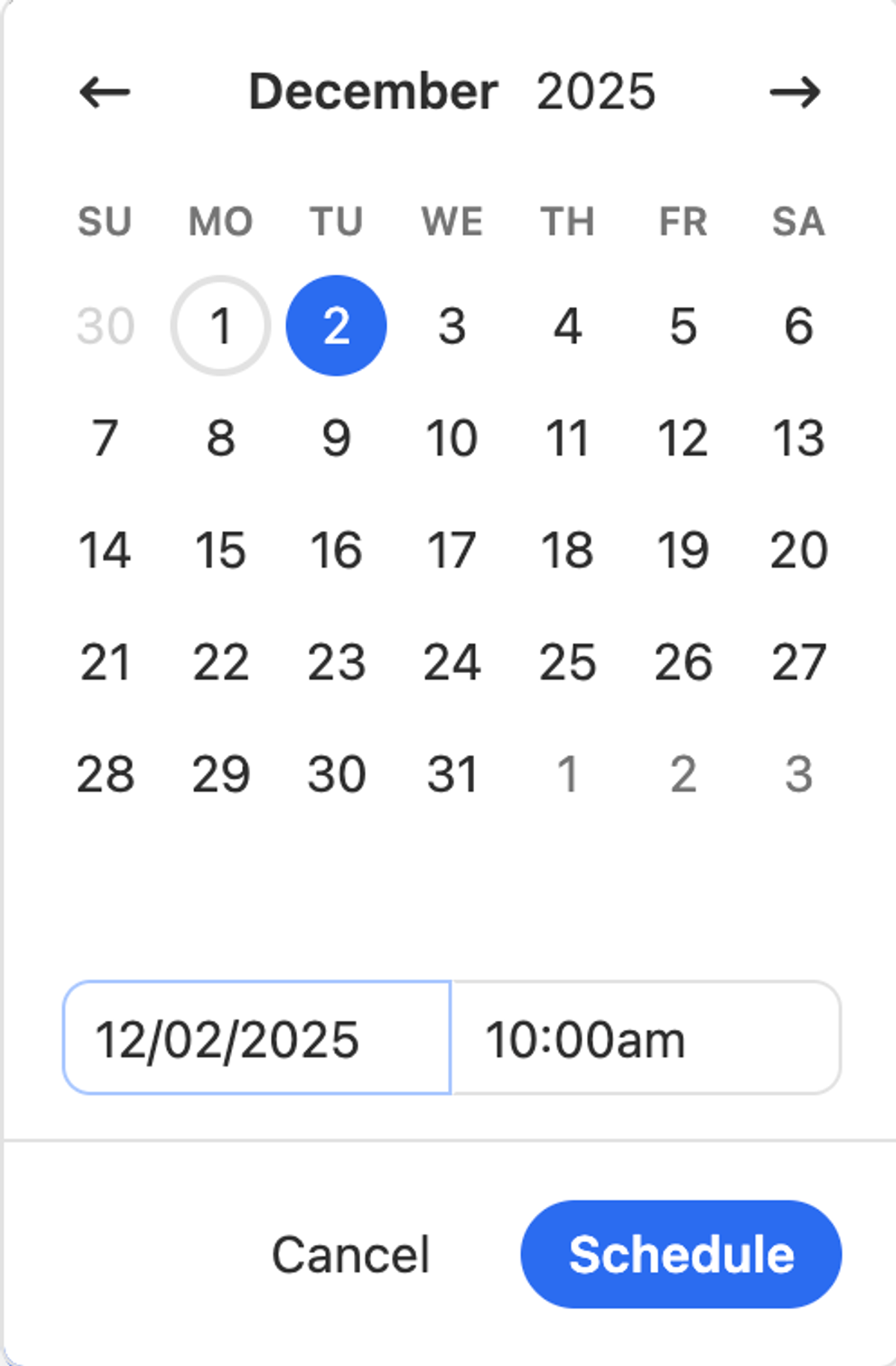
You can assign Call Tasks to yourself or a member of the team as a reminder to call a Contact at a specific date and time. Call Tasks are similar and appear on Leads and the Inbox in the same place as Tasks, but there are a few differences:
Call Tasks must have an associated Contact.
When created using Workflows (via the Call step), Call Tasks can be assigned to a Group.
Close will automatically mark Call Tasks complete when there is a Call between the associated Contact and an assigned User.
A Call activity between the associated Contact and assigned User is required in order to mark a Call Task complete.
To learn more about Call Tasks, check out the Help Center.
New Feature
Column Calculations in Smart Views and New Opportunities List
New in Smart Views: Instant Column Calculations
You shouldn't need a spreadsheet just to understand your own data. Now in Close, every search result and Smart View comes with instant column calculations: averages, sums, min/max, % empty, counts, and more. No downloads, no formulas, no context-switching. Just answers, right where the work happens. Open it to quickly add a calculation to the column. This info gets saved with the Smart View so anyone you share it with will see it too!
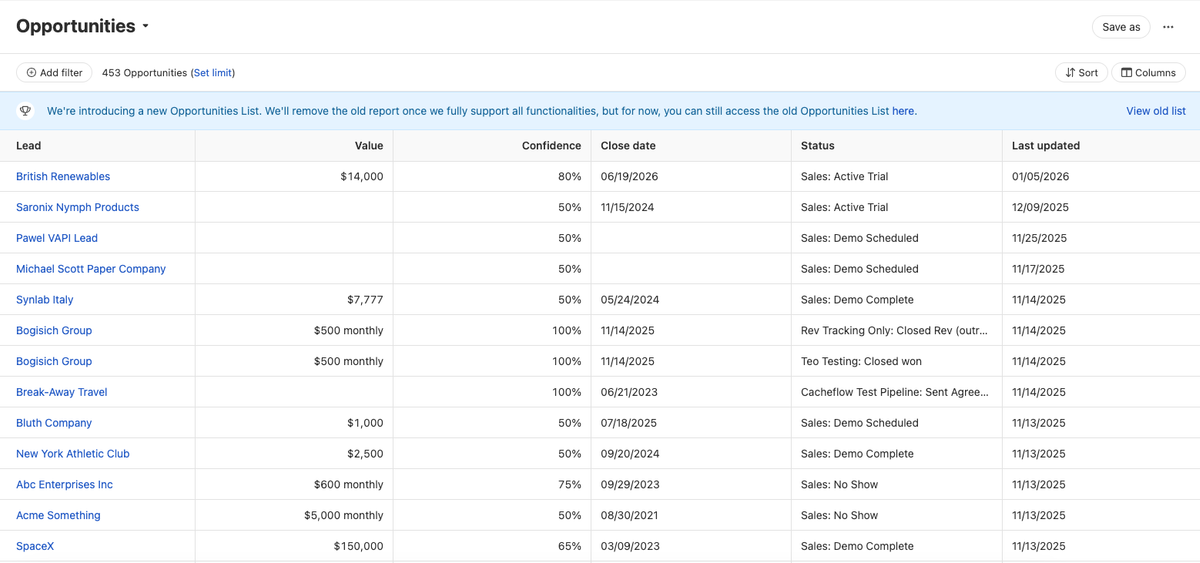
New Opportunities List
We also shipped the reworked Opportunities List.
The new list view has many new features, such as:
Advanced Filtering
Report Saving
In-column Calculations
Column Sorting
Column Resizing
Column Drag and Drop
It's replacing the old Opportunities List (which is still accessible via the banner link on the new list page).
Improvement
February 2026 Improvements
Workflows
We added a "View Run" option to the Workflow subscription details modal, allowing you to navigate directly to the run details.
Workflow step assignment fields (Send from / Assign To) no longer require the "Manage Organization" or admin permissions. They are now controlled by the same workflow-level permission as all other fields.
When manually triggering a Workflow, the dropdown now shows an icon indicating the workflow's type (lead, contact, etc.).
Other
We added a new checkout page for trials and new Call Assistant checkout flow.
Users can now edit their voicemail drop recording when an invalid audio file was previously uploaded.
Filter group titles now show a type indicator (e.g., "Custom Activity", "Custom Object", "Form Submission") after the entity name to help distinguish between different entity types when filtering.
AI Enrich icon is now unified across usage.
Improvement
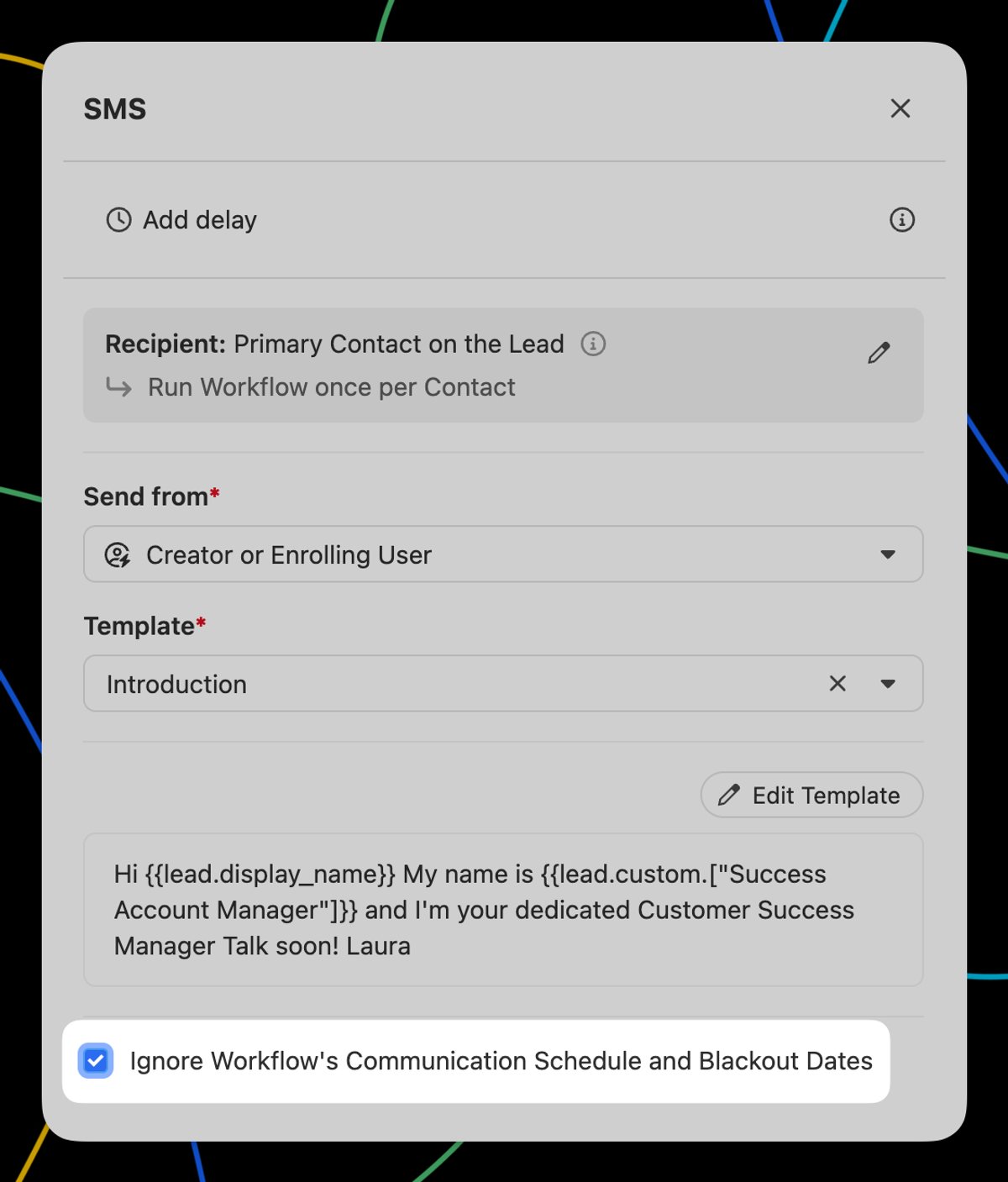
Ignore the Communication Schedule and Blackout Dates on communication steps
Email, SMS, and Call steps have a new "Ignore Workflow's Communication Schedule and Blackout Dates" checkbox. When checked, the step will process immediately and ignore the Communication Schedule and Blackout Dates configured on the Workflow.
On Call steps, the Call Task due date will be set to the time the Workflow step was processed.
This is great for situations where you want an SMS, email, or call to happen immediately after the Workflow is triggered, regardless of what day/time it is, and have the rest of the Workflow steps follow a traditional schedule.
Improvement
January Improvements
Telephony
Call hangup should no longer fail in the legacy call bars.
We added Costa Rica to the list of countries for which users can rent phone numbers.
Calls that cannot be coached will no longer show the “Listen” button incorrectly.
Conversations
We added a “Date Range” filter on the Conversations page.
Call activities with a voicemail drop will now show the media player, allowing the voicemail to be played.
Workflows
Workflow Update Lead/Opportunity steps now display an error when attempting to save without any fields configured.
Inbox
You can now undo sending an email from the Inbox using the success toast.
Other
The Account Disconnected banner now only appears when the erroring feature is enabled on the account.
New Feature
Automate Lead capture with our new Forms
Close Forms is our native web form builder that lets you capture and route website leads directly into Close. No Zapier or third-party tools required.
What you can do:
Build custom forms with a drag-and-drop builder (no coding needed)
Embed forms on your website to capture leads instantly
Route leads automatically into Close with clean CRM data
Prevent spam with built-in protection
Track form activity right on the lead page
Filter and search form submissions with Smart Views
Get notified when new leads come in
Why it matters:
Forms eliminates setup friction for new teams and reduces your dependency on external tools. Whether you're a new trial user looking to see leads flow quickly or an established team consolidating your tech stack, Forms helps you get leads into Close faster so your team can follow up sooner.
Get started: Head to the Forms section in your Close account settings to create your first form.
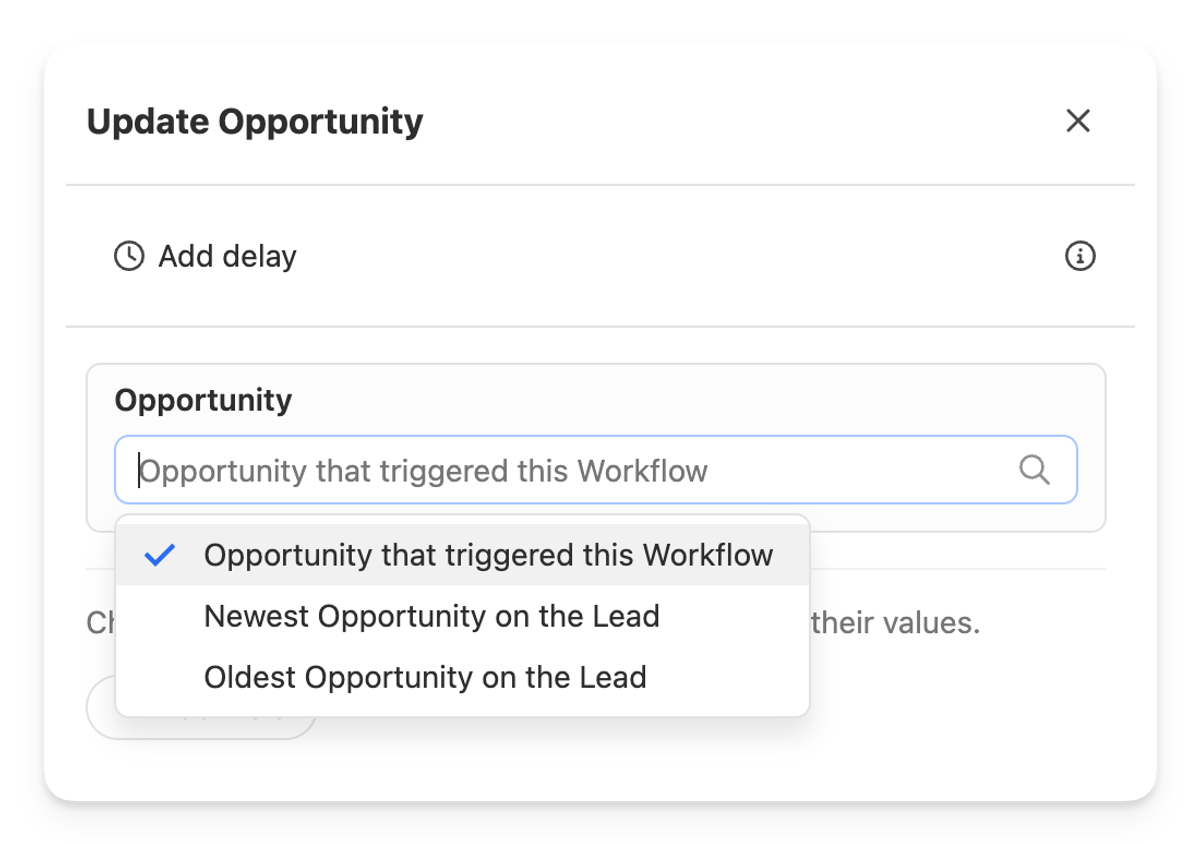
Updating an Opportunity's confidence percentage or Custom Fields fields when the status changes.
Updating an Opportunity's status when an event occurs on the Lead or a Custom Activity is published.
Changing the owner of an Opportunity when the Lead gets assigned to another user.
New Feature
Dive deep into your call data with our new Calls Report
We just launched a brand new report that's overflowing with great insights about your team's call activity. In addition to a quick look at call volume over time, you can get breakdowns of calls by duration and disposition so you can understand if your calls are being answered and how many substantive conversations are happening vs. quick hangups. Additionally, you'll find a chart showing the total leads dialed vs. unique leads dialed, and the count of each type of outcome set on your calls.
You can filter the report by Smart View, User, Direction, Duration, Outcome, and, by popular demand, phone number.
Learn more about automating Email using Workflows in Close's Help Center.
Free trial Free migration Free support No credit card needed