
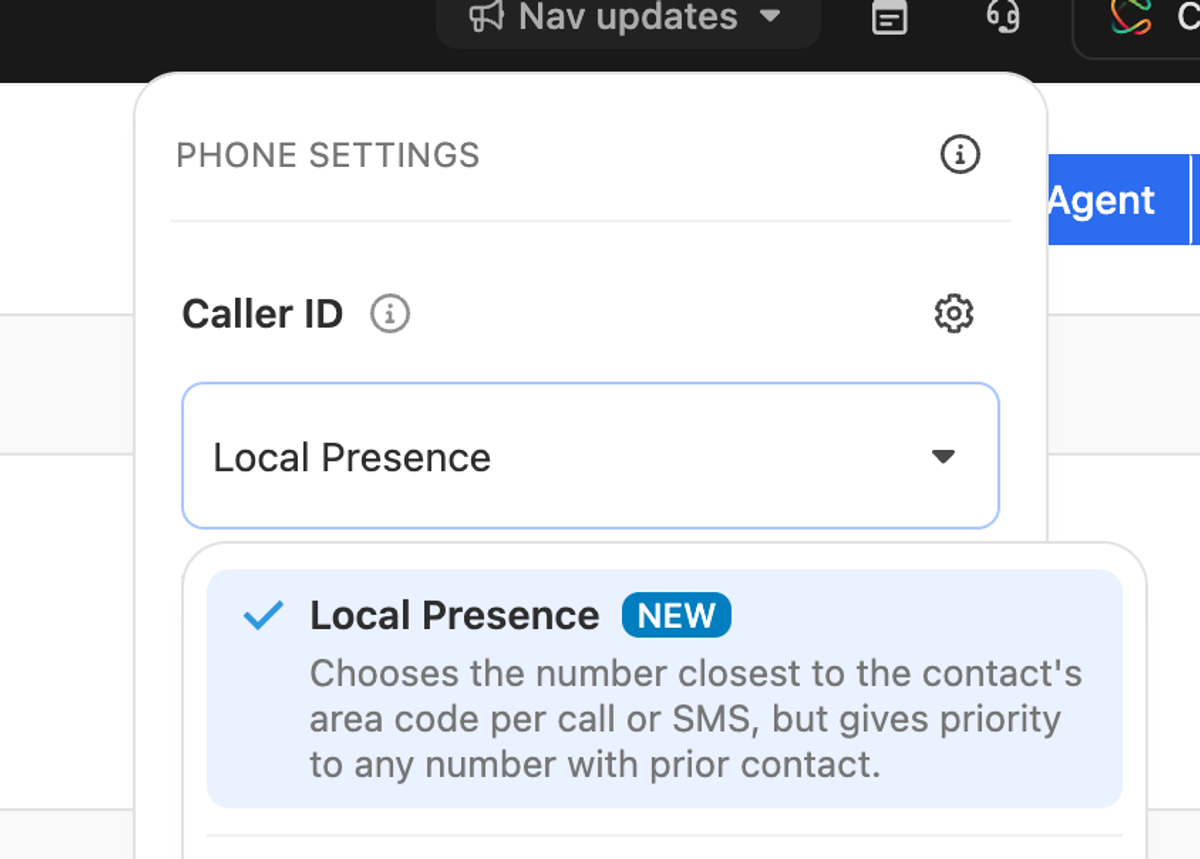
Local Presence picks your outbound caller ID for each call and text, so contacts see a number they recognize or one that looks local. You don’t have to switch caller IDs by hand.
For each new call or text, Close picks:
- A number the contact already knows. If you’ve connected with them before, Close reuses the number you used most recently.
- Your closest number. Otherwise, Close picks your number nearest to the contact’s area code.
- Your primary number. If Close can’t tell where the contact’s number is, it falls back to your primary number.
To turn it on, click the phone icon next to your name, click your current caller ID, and choose Local Presence at the top of the list. You need at least two numbers you’re a member of.
See why a number was picked
Hover over the number on the call bar to see which number you’re calling from and why Local Presence chose it. The same details appear on calls and texts in the lead’s activity.
Choose which numbers are included
Each number now has a Local Presence section in Settings -> Communication -> Phone & Voicemail. Turn off “Members’ calls and SMS” on a number you’d rather keep for inbound, like a main sales line.
Works with Workflows, voice agents, and the Predictive Dialer
- Workflows: Turn on “Use Local Presence” on an SMS step to send each text from the best number for that contact.
- Voice agents: Choose Local Presence as an agent’s phone number. It picks from numbers with “Voice agents’ calls” turned on.
- Predictive Dialer: Choose Local Presence as the caller ID when you set up a session.
Local Presence is available on the Essentials, Growth, and Scale plans. It can only pick from numbers you have, so add numbers in the area codes you call most under Settings -> Communication -> Phone & Voicemail.

