
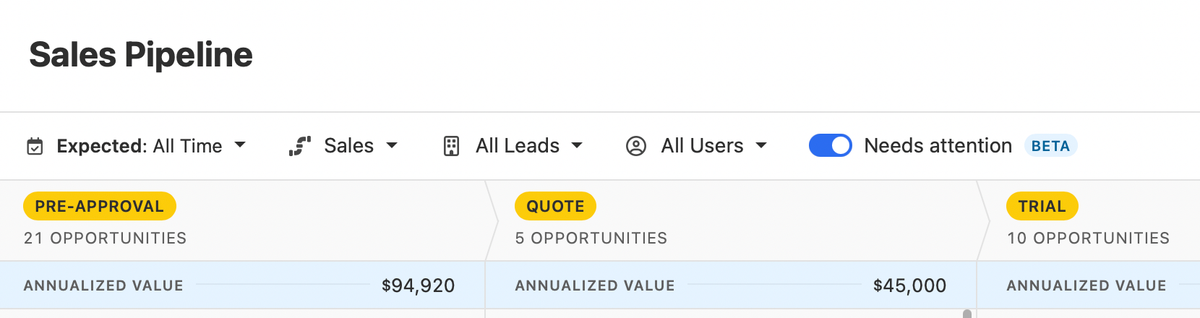
Pipeline Guidance is your AI-powered deal assistant. It automatically highlights what needs your focus, suggests actions to move opportunities forward, and helps you take immediate action through one-click options. These options include drafting emails and SMS messages, moving opportunities to the correct status column, and launching the dialer to call leads right away.
Note: Available on Growth, Scale, Professional, Business, and Enterprise plans. No additional AI charge at this time.
Pipeline Guidance helps you work through your Opportunity Pipeline in two ways:
- Flagging opportunities that need attention
- Providing AI-powered suggested actions to move flagged opportunities forward toward closing, or clean up your pipeline if a deal is clearly lost
Focusing On Opportunities That Need Attention
A new Needs attention toggle at the top of the Opportunity Pipeline filters the view to show only deals that have been flagged.
An opportunity is flagged as "Needs attention" when:
- It is past its estimated close date
- It has been in its current pipeline status longer than is typical for that stage
- Recent communication from the lead has gone unanswered by your team
Suggested Actions
Opportunity cards that need attention use AI to suggest the appropriate next action based on recent activity — meetings, calls, and emails.
If you disagree with or no longer want to see a suggested action, click Dismiss to hide it for that opportunity.
Example situations and suggested actions:
- If a rep has been emailing with no response, the suggestion may be to call instead. Clicking "Follow Up" would dial the lead.
- If a lead promised to follow up and hasn't, the suggestion may be to email them. Clicking "Follow Up" would open a pre-drafted email ready to send or edit.
- If recent communication indicates a deal is clearly lost, clicking "Change Status" would move the opportunity to the Lost status.
Suggested actions also appear in other places where opportunities surface, such as Inbox Reminders and the Lead page.

