Nova funcionalidade
Workflows: Minute delays, drafts, and more actions


Se é uma equipa tecnológica que precisa de crescer sem pagar demasiado por um software de vendas empresarial, encontrou a ferramenta de vendas certa.
From the lead page and the Inbox, you can now select SMS conversations to follow you around the app, docked to the bottom of the screen. When new messages come in, you'll see them right away, and we'll play the notification sound, too.


.png)


You can now access the Potential Contacts page directly from the Inbox and New Lead modal. This makes it faster to uncover and connect missing contacts without leaving your current workflow. You can read more about this feature in our help docs here.


Too many Smart Views in your sidebar? You're not alone. We've made some big updates that should help you get all your clutter under control.
New Saved Views Page
Click on the new icon next to the search in your sidebar to see the new Saved Views page. This page has all of the Smart Views, Conversations, and Reports that your user has access to inside your organization.

With robust filtering, this new page makes it easy to find what you're looking for. Filter by type, sharing, or creator. You can also sort the list by when a Saved View was created or last used. Try sorting to see the oldest views at the top and using our new bulk delete feature to remove old, unused Smart Views, Conversations, and Reports.

Pinning Improvements
We've also made it super easy to clean up your sidebar with a new "Unpin" icon that appears on hover. Items that you remove from your sidebar will still appear in the new Saved Views page, so you never have to worry about losing them! You can use your sidebar for the most important Smart Views that you access regularly and keep everything else on the new page.

If you need to get any Smart View back that you've unpinned, simply click the three dots on any Smart View on the new page and click "Pin to Sidebar" to bring it back. Easy peezy!


You can now add CC and BCC recipients to any email template. These email addresses will be automatically included whenever the template is used in Close.

Additionally, you can now sort by any column in the Email Template list, including Last Activity. Additionally, you can select multiple templates at once to unarchive, archive, or delete them. Since teams frequently create new templates while older ones become outdated, we've made it easier to organize and clean up your template list. This helps you and your team quickly find the templates that matter most.
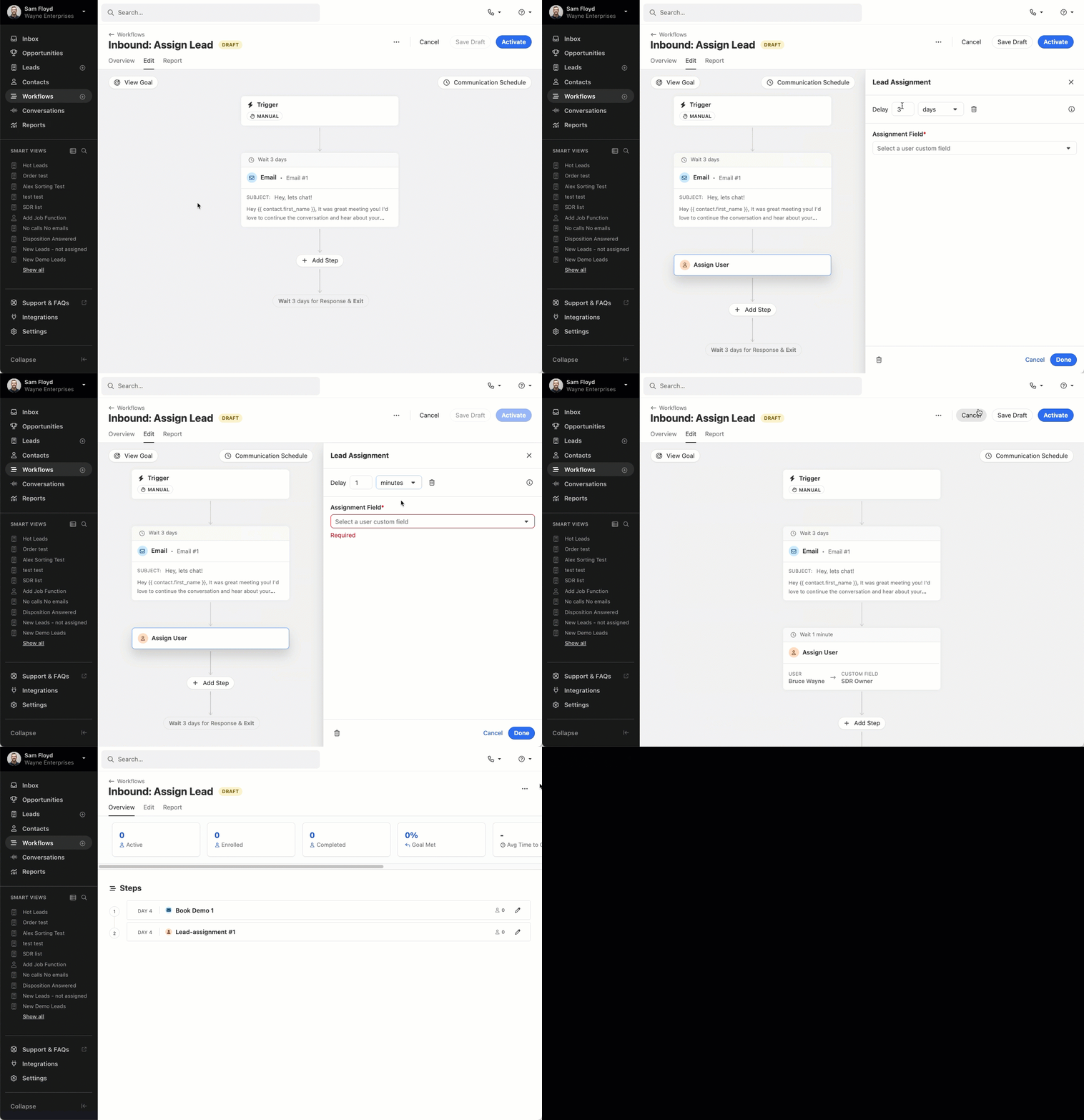
There are two new options for Workflow conversion goals - Meeting booked and Lead status change.


You can now add attachments to SMS templates. Attachments can only be sent to US, CA, and AU numbers. Go ahead and include an image of that new feature you just launched!

Before, you had to keep closing and opening the sidebar to edit workflow steps, which made the screen jump around and was hard to work with. Now, you can see and edit everything at once. We've also made the layout more stable so things don't move around as much when you make changes.
In the Workflow list, we added the option to sort by any column, added a new “last activity” column, and made a few visual design updates to polish things off. Finally, we also added the option to select multiple workflows at once. All these changes were made to help you find your most important, active workflows quickly and ensure your team’s Workflow list can easily be cleaned up.

You can now instantly share Smart Views with entire groups within your organization. Previously, sharing a Smart View required selecting individual users one by one. With this update, users can select a group, and all current and future members of that group will automatically have access to the Smart View.
This feature is available to Enterprise customers who have at least one group in their account. It simplifies the sharing process and ensures that as group memberships change, all members will always have the appropriate access to Smart Views.
To share an existing Smart View with a group, click the edit icon. If your organization has any groups, you'll see a "Groups" tab where you can select groups to share the view with:

To create groups, go to Settings and select the "Team Management" tab. Note that your plan must have access to groups in order for you to see this feature.


We made two exciting updates designed to make importing and managing your data in Close more seamless than ever. These enhancements give you more functionality, save you time, and simplify your workflows.
Importing Opportunities
You can now create or update opportunities using the importer, making it easier than ever to manage your sales pipeline.
Importing opportunities follows the same familiar flow as importing leads or contacts. Simply map the necessary fields during the import process, and Close takes care of the rest.

Error Handling
We’ve made it simpler to address import errors. The importer’s pre-validation now checks for issues across all field types, including text, number, and date fields.
During the field assignment step, Close automatically identifies errors and provides the option to fix them directly within the review modal. There’s no need to edit your spreadsheet or start over. Simply make corrections on the spot and continue with the import.


.png)

Fizemos várias melhorias na nossa experiência da Caixa de Entrada para o ajudar a zerar o número de mensagens pendentes e a concentrar-se primeiro nas mensagens mais importantes.
Separador principal personalizável
Agora pode controlar quais os itens que aparecem no seu separador principal e na contagem da sua Caixa de Entrada. Isto permite-lhe dedicar menos atenção aos itens de menor importância na Caixa de Entrada (por exemplo, lembretes de acompanhamento, mensagens de ausência do escritório, etc.) e concentrar-se mais nas mensagens enviadas por pessoas, se assim preferir.
Para personalizar o separador «Principal», basta localizar o ícone de definições na parte superior da página da Caixa de Entrada. Quaisquer itens que desmarcar continuarão disponíveis nos respetivos separadores da Caixa de Entrada.

Separador «Lembretes»
Adicionámos um separador dedicado aos lembretes, que lhe mostrará todos os lembretes de acompanhamento (tanto de e-mail como de oportunidades) separadamente dos e-mails e de outros itens.

Enviar + Concluído e Detecção de resposta
A partir de agora, iremos marcar automaticamente os e-mails como «Concluídos» quando enviar uma resposta, por predefinição. Anteriormente, cada envio exigia um clique adicional para remover o e-mail da sua Caixa de Entrada. Se preferir enviar uma resposta mas manter o e-mail na sua Caixa de Entrada, pode fazê-lo!

Também facilitámos a tarefa de manter a sua Caixa de Entrada organizada quando envia e-mails dentro e fora Close. Sempre que detetarmos uma resposta a um item que se encontre atualmente na sua Caixa de Entrada, iremos marcá-lo como Concluído, para que não tenha de eliminar itens que já tenha tratado ao processar a sua Caixa de Entrada enquanto estiver Close. Estes itens continuam disponíveis na sua pasta «Concluídos», caso precise de os consultar.
Desduplicação de itens
Melhorámos a experiência ao receber um e-mail ou uma mensagem SMS de um endereço de e-mail ou número de telefone que esteja associado a vários leads na sua organização. Em vez de esse item ser duplicado para cada lead, verá um único item relacionado com essa mensagem na sua Caixa de Entrada. Pode facilmente visualizar os outros leads associados, se desejar, e marcar o item como Concluído num lead irá marcar o item como Concluído em todos os leads onde esse item foi referenciado. Por predefinição, o contacto mais antigo que contenha o endereço de e-mail ou número de telefone será o lead/contacto apresentado no item deduplicado.

Visualização da conversa por SMS
Ao receber respostas por SMS e novas mensagens na sua Caixa de Entrada, passaremos a mostrar-lhe o histórico completo das comunicações entre si e o contacto (mensagens enviadas entre os dois números). Isto irá proporcionar-lhe uma visão completa do contexto da conversa e facilitará a resposta direta, sem sair da Caixa de Entrada.

You can now use natural language to search and filter your Leads and Contacts in Close. Our AI-fueled Search allows you to find leads faster by taking your prompts and automatically building filtered lists for you.

Novidades


Correcções de erros

Novidades


Customers on Pro, Enterprise, and Business plans can now use AI to generate concise summaries of Leads in Close.
These summaries include key details from recent activities, Custom Fields, Opportunities, Tasks, and Contacts. Whether you’re about to hop on a call, send an email, or prepare for a meeting, you’ll have all the essential information at your fingertips.

Lead Summaries are generated using advanced AI, but they may occasionally contain inaccuracies. You can help improve the quality of summaries by using the Thumbs Up and Thumbs Down button.
For more details on this feature, please refer to our help documentation.

Aprenda o como e o porquê de Close em apenas alguns minutos.

Entenda o essencial da Close com um tour guiado, direto ao ponto e sem conversa fiada.